Running a business server isn’t just about picking a reliable hosting provider. You’ll also need a secure way to access your server, manage files, run commands, troubleshoot errors, and keep your data safe. If you work in server management, you must have heard about SSH. But what is in SSH, how does it work, and which SSH solutions are best for business servers?
SSH is a must-have tool for developers, system administrators, IT teams, and businesses that need to manage Linux or other compatible servers remotely. It provides an encrypted connection that allows authorized users to manage a server from another computer while protecting sensitive information.
In this article, we’ll explain what SSH is, what it includes, how it works, and how you can choose the right SSH solution for your business. We’ll also cover practical security tips and explain when a business might benefit from managed server hosting.
Table of Contents
What Is SSH ?
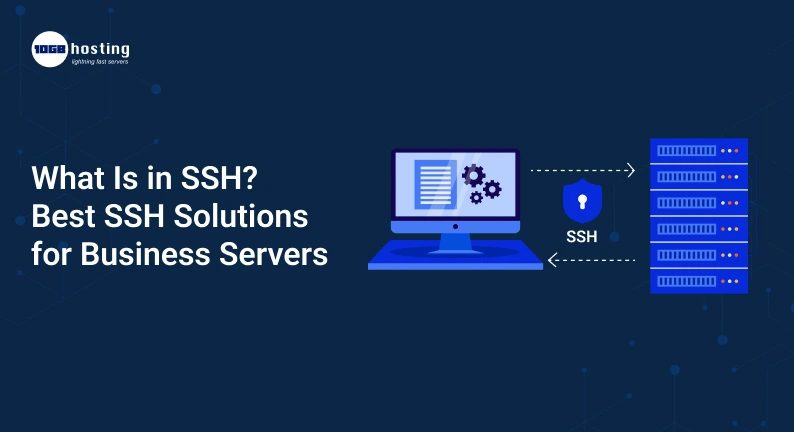
SSH is short for Secure Shell. It is a network protocol that enables users to connect securely and control another computer over an unsecured network.
For instance, imagine that your company hosts a website on a Linux VPS. Your server can be situated in a data center hundreds of kilometres away. Rather than physically being in front of the machine, your administrator can log in via SSH from their own computer and administer the server remotely.
SSH allows authorised users to:
- Executing server commands.
- Software installation and upgrades.
- File and directory management.
- Tracking system performance.
- Setup of services and applications.
- Troubleshooting website/server errors.
- Use compatible tools to transfer files securely.
SSH is commonly used on Linux servers, cloud servers, VPS hosting and dedicated servers. It can also be used with other operating systems that have an ssh server.
What is SSH? Understanding the Major Components
If you’re wondering what SSH is, it helps to understand the main components that enable a secure connection. SSH is not one application or password. It is a protocol that uses encryption, authentication and safe communication.
1. SSH Client
The software you use to connect to a remote server is called an SSH client. It runs on your local machine and sends connection requests to the server.
Popular options include:
- OpenSSH : A popular SSH client available on Linux, macOS and Windows.
- PuTTY: is a popular graphical SSH client for Windows.
- Terminal: macOS and Linux have terminal programs that can run SSH commands.
- Windows Terminal or PowerShell: Windows users can use the built-in OpenSSH client if it is installed and available.
2. SSH-Server
SSH server is running on the remote machine you want to connect to. In many Linux distributions, this service is provided by OpenSSH Server, commonly known as sshd.
It listens for incoming ssh connections, authenticates the user, and allows authorised sessions based on the server’s configuration and permissions.
The SSH client cannot log into a remote server unless the corresponding SSH service is running, the network access is allowed, and the user has valid credentials.
3. Cryptography
Encryption protects information passed between client and server. After the SSH connection is established the communication is encrypted. This is useful to prevent third parties from reading commands, responses and other data sent.
This is especially true for administrators who are connecting from home, or an office network, or some other place over a public or otherwise untrusted network.
4. Authentication
Authentication is verifying that the person or system attempting to connect is allowed to connect.
The most common methods to authenticate to SSH are:
- Password authentication The user enters a password.
- Public-key authentication: the client proves it knows a private key corresponding to a public key that the server trusts.
- Multi-factor authentication: A supported configuration may require additional verification.
Public-key authentication is often used in the administration of business servers, as it can decrease the reliance on passwords. However, private keys need to be carefully protected and access removed when a user no longer needs it.
5. SSH Keys
SSH key authentication involves a pair of cryptographic keys:
- Public key : Stored on a trusted system or server.
- Private key: Kept securely by the user or authorised system.
The private key should never be published or uploaded to an untrusted location. For business environments, consider encrypted private keys, limited permissions, passphrases and centralised key management where appropriate.
6. Secure File Transfer
SSH also provides secure file transfer methods, such as SFTP and SCP.
- SFTP: enables users to move and organise files through a secure connection.
- SCP: is used to copy files between systems securely.
These tools can help companies transfer website files, application backups, logs and configuration files without using unencrypted file-transfer methods.
How Does SSH Work?
Knowing how SSH works makes it easier to use SSH safely. The underlying encryption is complex , but the basic process is simple .
- The client starts the connection: The administrator types the server’s address and user name into an SSH client.
- The server introduces itself: The client checks the server’s host key to help ensure that it is indeed connecting to the right machine.
- The systems set up encryption: The client and server negotiate algorithms for cryptography and set up session keys.
- The user logs in: The server checks the provided password, SSH key, or other configured authentication method.
- A secure session is started: After successful authentication the user is allowed to run commands or do other allowed tasks.
- End of session: the user logs out at the end of the work.
For example, an administrator may connect to a Linux VPS using this command:
ssh username@server-ip-address
Replace username with the authorised server account and server-ip with the server’s IP address or hostname.
In case the SSH service is running on a custom port, you can specify it with:
ssh -p 2222 username@server-ip
For example, the port 2222 is only an example. Use the port configured in your server
Important: When you connect to a server for the first time, try to verify the host-key fingerprint through some out-of-band trusted channel. If the host key has changed, don’t accept it blindly as this could be a sign of a server replacement or security issue.
Best SSH Solutions for Business Servers
Which is the best SSH solution for you depends on your operating system, team size, technical experience, security requirements and server infrastructure. Some businesses need a basic command line client, while others need centralised access management and auditing.
There are a number of options to consider.
1. OpenSSH: Best for Linux Server Management
OpenSSH is one of the most common ways to connect to and manage Linux servers. It has client and server utilities, key authentication, secure tunnelling, and more.
Best for
- Linux VPS Hosting Managed
- Dedicated administration server.
- Developer workflows and automation.
- Businesses that require flexible, standards-based SSH access.
Most Linux distributions ship with OpenSSH already installed, or you can install it using the package manager. Its configuration options make it a fit for small businesses as well as larger technical teams.
2. PuTTY: Best for Windows Users Looking for a GUI
PuTTY is a well-known Windows SSH client. It has a graphical interface for setting up connections and is useful for admins who don’t want to work entirely from the command line.
Best for:
- Connecting to Linux servers from Windows
- SSH for Beginners.
- Administrators that want to save the session settings.
PuTTY is a client, not a full server hosting solution. You will still need a server you can ssh to , and the right access credentials .
3. Windows OpenSSH: Best for Built-In Windows Workflows
The OpenSSH client is supported by many modern Windows installations. You don’t need to install a separate SSH application. Users can connect using PowerShell or Windows Terminal.
Best for:
- IT teams who already use Windows
- Administrators of Linux and cloud servers.
- Scripts for automating routine administration.
Before using it, make sure the OpenSSH client is installed and that your organization’s security policies permit the connection you intend to make.
4. Managed SSH Access: Ideal for Teams with Multiple Administrators
As a business grows, it can become hard to manage SSH keys and individual server accounts manually. Use a managed access solution or a privileged-access management platform to centralise authentication, access approvals, session logging and user offboarding.
Best for:
- Businesses with multiple administrators.
- Teams running multiple production servers.
- Organisations that need audit trails or approval workflows.
- Organisations with formal security & compliance requirements.
Compare products for support of your server environment, key rotation, multi-factor authentication, session recording, role-based permissions, and integration with your existing identity provider.
5. SSH Through a Bastion Host: Best for Small Server Networks
A bastion host (also known as a jump server) is an access point to systems on a secured private network. Administrators then log in through the access host rather than exposing every server directly to the internet.
Best suited for:
- Business with multiple cloud servers.
- Production environments with private network segments.
- IT teams that want to limit direct access to servers.
A bastion host needs to be locked down and monitored. It can enhance access control, but it is also a key security point that needs to be maintained and overseen.
Quick Comparison of SSH Solutions
| Solution | Best use case | Main advantage |
| OpenSSH | Linux and server administration | Flexible and widely supported |
| PuTTY | Windows-based administration | Easy graphical connection setup |
| Windows OpenSSH | Windows development workflows | Convenient command-line access |
| Managed SSH access | Multi-user business teams | Centralized access controls |
| Bastion host | Private server networks | Controlled access to internal servers |
There is no one best SSH solution for every company. A small team running a single Linux VPS might get away with just OpenSSH, but an organization running dozens of production servers will probably want centralized access management.
Configuring SSH on Business Server
When SSH connection is properly set up, it can make server administration much easier and unnecessary security risks can be minimised. Use the following steps to configure SSH access.
Step 1: Choose an Appropriate Server
Choose an SSH capable server that meets your workload needs. This could be a VPS Linux, cloud server or dedicated server.
Think about CPU, memory, storage, bandwidth, backup options, uptime expectations, and the technical support the hosting provider offers for a business website.
Step 2: Verify if the SSH Service is Running
On a Linux server with OpenSSH, the administrator can check the service with a command like:
sudo systemctl status ssh
On some distros the service is named sshd instead:
systemctl status sshd
The correct service name depends on your OS and distro.
Step 3: Add an Authorised User
Do not use the root account for routine administration. Create a separate account for each administrator, and only give them the permissions they need to do their jobs.
This allows you to track activity and easily revoke access when an employee or contractor leaves the company.
Step 4: Set Up SSH Key Authentication
Generate an SSH key pair on the administrator’s trusted computer, and install the public key for the server account that is appropriate.
For example, an OpenSSH client can generate an Ed25519 key pair with:
ssh-keygen -t ed2551
Secure the private key with a strong passphrase and keep it in a safe place. Follow your organization’s policies for key storage, key distribution, key rotation and key revocation.
Step 5: Block Network Access
Where practical, restrict SSH access to trusted IP addresses, VPN connections, or approved access gateways, using a firewall or a cloud security group.
SSH uses TCP port 22 by default, but a server can be configured to use a different port. Changing the port can help reduce some of the automated scanning noise, but it is not a substitute for authentication and firewall controls.
Step 6: Test Your Connection
Log into your SSH client and check that the expected account can log in. Make sure the user has the right permissions and is not allowed to perform unauthorized tasks.
Make sure that key-based access is working before you disable password authentication or change any other login settings. If you are testing important configuration changes , keep an existing admin session open to reduce the chances of locking yourself out .
Step 7: Maintain and Expand Access
Monitor login activity . Keep SSH software up to date . Remove unused accounts and keys . Investigate unusual authentication attempts .
For production servers, think about centralised logging and alerts so your team can react quickly to suspicious activity.
Why SSH is Crucial for Business Servers
But SSH is not just a convenient way to run commands on the server. It supports everyday operations and can help to contribute to a stronger security posture when properly configured.
Remote Administration Security
And IT teams can administer servers without being physically present at the data center. This is useful for distributed teams and businesses running applications in different places.
Protecting Sensitive Information
SSH encrypts the traffic for your session which helps prevent credentials and commands from being exposed while they are being sent. Secure authentication and careful key management add additional protection.
Faster problem solving
Admins can check logs, restart services, monitor resource usage and debug errors on the server itself. This way, a website or application with a problem can be fixed faster, with fewer delays.
Automation Aid
SSH can be used by approved scripts and deployment tools to do repetitive tasks such as deploying applications or running maintenance commands. Automated access should be through dedicated identities with least privilege, and credentials must be stored securely.
More Control Over Infrastructure of Servers
VPS or dedicated server hosting means that the business often needs access to system-level settings that aren’t available through a standard hosting dashboard. SSH provides authorised administrators with a direct method to administer supported server functions.
Essential SSH Security Tips for Companies
Installing an ssh client is not enough for a secure ssh setup. Apply these practices to reduce unnecessary risk:
- Prefer SSH keys: Use strong key-based authentication where appropriate, and protect private keys with passphrases.
- Disable root login: If your OS and administration process allow a safer alternative, don’t allow direct root login via SSH.
- Least privilege: Give users the least amount of permission they need to do their jobs.
- Limit access: Use firewalls, VPNs, or bastion hosts to restrict access to SSH.
- Multi-factor authentication: Add another level of verification wherever possible and supported.
- Keep software up-to-date: Apply security updates to the operating system and SSH packages .
- Monitor login activity: Check login records and look for suspicious logins.
- Disable unused keys: Revoke keys and accounts when access is no longer needed.
- Secure backups and secrets: Never commit private keys, passwords or sensitive credentials to public repos or unsecure files.
- Keep access to recovery: Document and test emergency access procedures without compromising security.
This is especially true for business servers containing customer data, online stores, business applications or internal systems.
How to select the best SSH and hosting solution
When comparing server providers or ssh management tools, ask yourself these questions:
- What kind of server do you have? Confirm the operating system and SSH requirements for support.
- How many people need to have access? A single admin has different needs than a team of admins managing multiple production systems.
- Do you require centralised controls? If your organization needs access approvals, user management, key rotation, and audit logs, make sure you’re looking for them.
- How much server management can your team do? If you lack the in-house expertise, managed server hosting can reduce the maintenance burden.
- What are the options for support and recovery? Before you purchase a plan, be sure to read the backup policies, support response times and recovery procedures.
If you are buying a VPS or dedicated server for business use, make sure that SSH access is included, that you can establish the required security controls and that the provider has the right level of support for your technical needs.
For businesses needing more control over applications, updates and server configuration, a Linux VPS or dedicated servers with SSH access can be a practical solution. If you don’t want to be responsible for all server maintenance yourself, compare managed hosting plans and ask exactly what they’re managing.
SSH Frequently Asked Questions
1. What’s ssh?
SSH is Secure Shell. It is a network protocol that is used to create encrypted connections between computers, allowing authorised users to securely access and manage remote systems.
2. What’s in SSH?
SSH has several components like a client, a server, encryption, authentication methods, and host keys. It also supports authentication with public and private key pairs, and secure file transfer over SFTP and SCP.
3. Business servers are connected over SSH.
Businesses use SSH to remotely manage Linux servers, install software, troubleshoot errors, transfer files, deploy applications, and automate administrative tasks. It is commonly used with VPS, cloud and dedicated server environments.
4. Is SSH more secure than password access to a server?
SSH is a protocol that supports password authentication and public key authentication. Strong SSH keys can be a better way to protect against password-guessing attacks, especially when combined with restricted access and good key management. SSH is not magically secure because you enabled it, configuration matters.
5. What is the best SSH solution for business servers?
OpenSSH is a good choice for many Linux server environments. Windows users have helpful options in PuTTY and Windows OpenSSH, and larger organisations may benefit from managed SSH access or a bastion host. The right choice depends on your infrastructure, team size, security requirements and budget.
Conclusion: Pick a Secure SSH Solution for Your Business
Knowledge of SSH can help you make better decisions about server administration and security. SSH offers encrypted remote access, supports multiple authentication methods and allows business servers to be managed without physical access.
If you just want a simple Linux server setup you may just need OpenSSH. Windows users can try PuTTY or Windows OpenSSH . Larger teams might need centralised access management or a bastion host .
The trick is to select a solution that fits your business needs and configure it correctly. Secure authentication . Restricting access to servers . Regular software updates . Monitoring server activity .
Ready to boost your business server setup?
Get reliable VPS and dedicated server hosting with the proper level of SSH access and administration for your staff. Compare features, support and pricing to find a plan that fits your business needs.