Imagine your business server suddenly goes down due to hardware failure, a ransomware attack, or a corrupted operating system. Your website goes offline, employees lose access to important files, and customer services come to a standstill. Even after replacing the broken hardware, you still need to reinstall the operating system, configure applications, restore data, and get everything working again.
If you don’t have the right recovery solution, this process can take hours or even days.
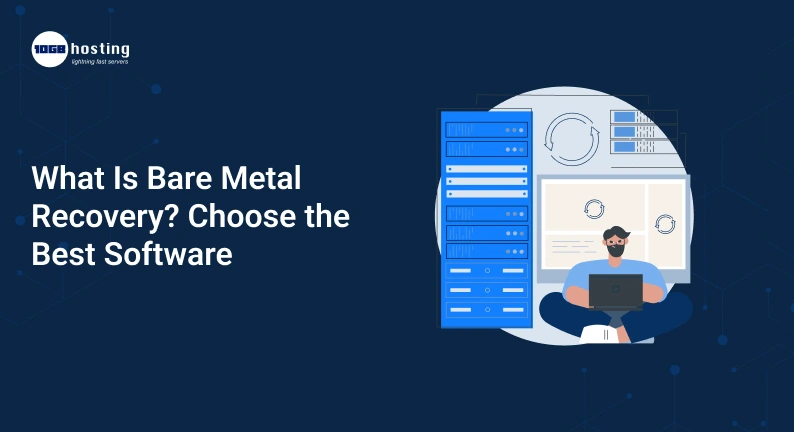
That’s where bare metal recovery comes in. If you’re wondering what is bare metal recovery, it is a process that allows you to restore a complete computer or server system, including the operating system, applications, configurations, and data, without having to rebuild everything from scratch.
Whether you are running a business server, managing an e-commerce website, or storing important company data, choosing the right recovery software can help minimize downtime and protect your business operations.
In this article, we’ll discuss bare metal recovery, how it works, the difference between bare metal backup and bare metal restore, and how to choose the right software for your business needs.
Table of Contents
What is a Bare Metal Restore?
Bare metal recovery (BMR) is a disaster recovery method that restores a complete computer or server system to a new or repaired machine without requiring a previously installed operating system.
“Bare metal” refers to the physical hardware of a computer that does not yet have an operating system or applications installed on it.
With a good backup and recovery solution, you can restore important system components such as:
- Operating System and Boot Setup
- Application and system settings installed
- Business databases, files, folders and
- Disc partitions and system volumes
- User accounts and supported configurations
- Other system components needed to make the machine operational, which have been backed up
For example, let’s say your Windows server goes down because of a corrupted main storage drive. This eliminates the need to reinstall Windows and configure applications and manually copy files . A bare metal recovery image can then be used to restore the system to compatible replacement hardware.
How you recover depends on what backup software you have , what operating system you are using, what hardware compatibility you have and how you set up the backup.
What Is a Bare-Metal Restore?
Bare metal restore is essentially the process of restoring a full system from a backup taken at an earlier point to a physical or supported virtual machine.
Bare Metal Recovery is the overall restoration capability/process. Bare Metal Restore usually means actually performing the restore.
A typical bare metal restore involves the following steps:
- Have replacement hardware or supported VM ready.
- Start the system using recovery media or a supported recovery environment.
- Connect to the backup storage location.
- Choose the system backup that you want.
- Restore the operating system, partitions, applications and backed-up data.
- Restart the machine and make sure everything is working fine.
Depending on the software, you might also have to change storage drivers, boot settings, network settings, or hardware-specific settings.
The success of a restore can bring a failed server back online much faster than rebuilding the entire environment from scratch.
What is Bare Metal Backup?
A bare-metal backup is a backup that aims to capture the system components needed to restore a computer or server to a blank or replacement machine.
This can be the operating system , boot partitions , installed applications , system settings , and important data . A bare metal backup can include all these things , whereas a basic file backup may only protect certain documents .
This makes it useful for disaster recovery as it provides a recovery point for the entire system, not individual files.
For instance, a business that has an accounting application running on a dedicated server may need more than just its customer records. Also, it may have to restore the operating system, database software, application settings and configuration files to operate normally.
These components together can be protected with a well configured bare metal backup.
However not all backup products provide full bare metal recovery. Before you buy the software, check that it supports full system-image backups, bootable recovery media and restoration to replacement hardware.
How Bare Metal Recovery Works?
The idea behind bare metal recovery is simple. You create a solid backup of your system before disaster strikes. Then when you need to, you rebuild the machine from that backup.
This is how it typically goes.
Step 1: Create a Full Backup of the System
First, create a system image or other supported backup format using your backup software that contains the needed operating system, boot information, applications and data.
You can schedule backups to run daily, weekly, or even more frequently, depending on how much data your business can afford to lose.
For critical servers, consider taking incremental backups between full backups to reduce backup time and storage requirements.
Step 2: Securely Store the Backup
Store backup copies in a suitable location such as:
- Dedicated backup server
- Network Attached Storage (NAS)
- Storage (Outside)
- Cloud storage backup
- A separate disaster recovery site
Do not store all backups on the same physical server that you are protecting. If that server goes down or gets compromised, your backups might be unavailable too.
If possible, keep a copy of backup isolated or “immutable” for better protection.
Step 3: Set up the Recovery Environment
If the original server crashes, boot the replacement machine using the recovery media supported by your backup software. This could be a USB drive, a recovery disc or a network based recovery environment.
You can access the backup and start restoring your system without having an operating system installed, using the recovery environment.
Step 4: Choose Backup and Restore System
Select the correct recovery point and destination disc. The software will restore the backed up system components to the target machine.
A few products offer dissimilar hardware recovery, the ability to recover a system to hardware that is different from the original hardware. Please verify compatibility before relying on this feature.
Step 5: Reboot and Test Your System
Restore the machine and reboot it. Check that the OS boots up properly.
Check essential services, applications, network access, user rights and database consistency. If the server hosts a website or business application, see if users can get to it and if critical functions are working as they should.
Finally, document the recovery process and investigate the root cause of the failure.
Why Bare Metal Recovery Matters for Businesses?
Bare metal recovery is especially helpful for organisations that rely on servers, applications and digital services to operate.
1. Minimise Downtime
Every minute of downtime impacts productivity, customer satisfaction and revenue. Restoring a verified backup of a full system can cut down the time needed to rebuild a failed server.
Actual recovery time depends on backup size, storage speed, network bandwidth, hardware and software capabilities.
2. Recovery from Hardware Failure
Drives can die , components can fail or the server can just crap out completely . Bare metal recovery is a method of restoring a backed up system to compatible replacement hardware, rather than rebuilding it manually.
3. Disaster Aid Recovery
Natural disasters, accidental damage and major infrastructure problems can cause systems to be down. When backups are held outside of the production environment, bare metal recovery can help to recover services at an alternate supported site.
4. Secure Business Applications and Configurations
Reinstalling an operating system is just one part of rebuilding a server. Applications, drivers, settings and other dependencies may take longer to configure .
A full system backup allows these components to be retained, reducing the amount of work required to get back to normal operations.
5. Bolstering Ransomware Recovery
Ransomware can encrypt files, it can even take entire systems down. Once the affected environment is contained and secured, a clean, usable backup can offer a recovery option.
However, bare metal recovery is not a replacement for cybersecurity. Backups are isolated. Controls of access and multi-factor authentication where supported. Security checks before restoring a compromised system.
What is the best bare metal recovery software to choose?
What software you choose will depend on your server environment, recovery goals, backup storage, budget and technical needs.
When evaluating bare metal recovery solutions, consider the following products. Some features may not be available in all editions or versions of the product. Some features may not be available in all languages. See current product documentation for availability.
1. Acronis Cyber Protect.
Acronis Cyber Protect is the answer if a company wants to combine backup and recovery capabilities with cybersecurity features.
Potential benefits include:
- System and Disc Image Backup Features
- Supported plans with disaster recovery features
- Centralised management choices
- Backup workflows that include security features (in applicable editions)
- Solutions to protect supported physical and virtual environments
Best for: Companies that want to assess backup, disaster recovery and security capabilities on a single platform.
Make sure the edition you choose supports the operating system, bare metal recovery workflow and hardware restore scenario you need before you purchase.
2. Veeam Data Platform
If you’re an organization that deals with online environments, business-critical workloads and complex backup infrastructures, then Veeam Data Platform is worth a look.
It may include the following capabilities: Depending on product and license.
- Backup and restore for supported workloads
- Recovery options for physical and virtual machines
- Central backup management
- Backup verification and restoration testing facilities
- Multiple backup storage targets supported
Ideal for: Organisations seeking more advanced backup and recovery management across supported enterprise workloads.
Check that your physical servers, operating systems and your specific bare metal recovery needs are supported by the current edition.
3. Macrium Reflect:
Macrium Reflect is a disk-imaging and backup solution that could be suitable for individuals, IT professionals and businesses protecting supported Windows systems.
Relevant capabilities for assessment include:
- Backups of system image(s)
- Bootable rescue media
- Restore Partition and Disc
- Recovery to spare discs
- Hardware restoration support, if included in the applicable edition
Good for: Users wanting to try out a disc imaging solution for Windows computers or supported server environments.
Carefully review the licensing terms and platform support, especially if you require commercial or Windows Server protection.
4. EaseUS Todo Backup Free
EaseUS Todo Backup provides backup and recovery functions for supported computers and business environments based on edition.
What to look out for:
- Backups of systems
- Backups of partitions and discs
- File level restore
- Recovery media (bootable)
- System recovery options
Best for: Individuals and smaller organisations looking for a more user-friendly backup interface and system recovery tools.
Ensure the chosen edition supports bare metal recovery and is compatible with what you want to run on your hardware.
5. Windows Server Backup
Windows Server Backup is a native backup utility that ships with supported Windows Server platforms. Can offer system state and server backup features depending on configuration.
The potential benefits include:
- Integration with supported Windows Server versions
- Server backup and restore tools
- Help with system recovery situations
- No need to buy third-party backup product separately for the built-in utility itself
Best for: Smaller Windows Server environments with simple backup requirements.
It may not offer the centralized management, cloud integration, advanced reporting, or cross-platform capabilities that larger organisations require. Consider if you need additional backup software.
Quick Comparison
| Software | Consider it for | Important check before buying |
| Acronis Cyber Protect | Backup, recovery, and security features | Edition-specific BMR and hardware support |
| Veeam Data Platform | Broader business backup environments | Workload coverage and recovery workflow |
| Macrium Reflect | Disk imaging and Windows recovery | Current commercial licensing and platform support |
| EaseUS Todo Backup | System backup for supported environments | BMR availability in the chosen edition |
| Windows Server Backup | Basic backup in supported Windows Server setups | Whether its features meet your recovery objectives |
There is no single best bare metal recovery software for every business. The right choice is the product that can reliably recover your specific systems within your required recovery time and budget.
How to Pick the Best Bare Metal Recovery Software
Before you buy, compare the capabilities of a solution against your actual recovery needs.
1. Verify Operating System Compatibility
Make sure the software is compatible with your operating system and version. If you run Windows Server, Linux or mixed environments, be sure to check for support on every platform you need to protect.
2. Find Different Hardware Recovery
If your original server crashes, you might have to restore the backup to another machine.
Different hardware recovery can be helpful, but not always. Ask about the software’s support for different storage controllers, boot modes, drivers, and hardware configurations.
3. Assess Backup Storage Options
Choose a solution that supports your preferred storage destinations, whether local discs, network storage or cloud repositories.
Keep multiple copies in different locations for business-critical systems and consider the appropriate security controls to protect access to backups.
4. Compare the recovery speed and reliability
Don’t just judge a backup by how fast the software makes backups. Recovery speed is just as important as well.
Look for things such as creating recovery media, verifying backups, recovery testing, and clear restore procedures. The practical tests to estimate the time of a real recovery.
5. Licensing and Pricing Review
Backup software pricing can differ based on the number of devices, servers, workloads, storage capacity, or features you select.
Compare total cost: subscriptions, extra storage, support and advanced recovery features. A low-cost plan might not have all of the features needed to restore an entire server.
6. Support and Ease of UseCheck
When a server crashes outside of business hours, good documentation and responsive technical support can be worth their weight in gold.
Pick software your IT team can trust and ensure recovery instructions are available in case of a primary server or management console outage.
Bare Metal Recovery: Step by Step – The Preparation
Buying recovery software is only the first step. You also need a practical plan for recovery.
- Follow these suggestions: Identify Critical Systems List the servers, applications, databases and services that need to be restored first.
- Set recovery targets: Determine your recovery time objective (RTO) – how fast a system needs to be back online – and your recovery point objective (RPO) – how much recent data loss you can tolerate.
- Backup Schedule: Determine how often you will back up your data to match your RPO and the rate at which your data changes.
- Protect backup copies: Maintain separate copies, using encryption, control of access, and isolated or immutable storage where appropriate.
- Create recovery media: Safely prepare and store bootable recovery media for supported systems.
- Test the entire process: Restore a system to a test machine or an isolated environment to make sure the backup works.
- Document the process: where the backups are, how to get them, what recovery steps to take, and who’s responsible.
- Review the plan regularly: Re-run recovery tests after major infrastructure changes and upgrades to backup software or operating systems.
A Working Example
Consider an online store that is running its inventory application and database on a physical server. One morning the main disc on the server crashes, and the inventory system goes down.
Without a full system backup, the team may need to replace the disc, reinstall the operating system, set up the database, reinstall the application, and restore business records.
The team can restore the backed-up system onto replacement hardware, since they have a verified bare metal backup and compatible recovery software. Then it checks the database, inventory records, application functionality and network access before bringing the system back to production.
Recovery is not automatic in all cases and the time varies according to the environment. But with advance planning, a hardware failure doesn’t have to lead to a long manual rebuild.
Avoid These Common Mistakes in Bare Metal Recovery
Even with good software , if your backup plan is not up to snuff , you will not be able to recover .
Avoid these frequent mistakes:
- Never test backups: Just because a backup job has completed doesn’t mean the system is restorable.
- All backups stored on one server: A single incident can destroy both the production system and its backups.
- Boot compatibility is ignored: Additional prep may be needed for different hardware or boot configs.
- Buying software without checking compatibility: Check out the operating system, application and hardware support before you buy.
- Security doesn’t matter: Backup credentials should be protected and recovery copies shouldn’t be easy to find for ransomware.
- Failing to document recovery steps: Staff need to know how to start the recovery process and where to find backups in an emergency.
A standard recovery drill helps uncover these problems before a real incident occurs.
FAQs
1. What is bare metal recovery for?
Bare metal recovery is the recovery of a whole computer or server back to compatible hardware after a hardware failure, system corruption or major outage. It can restore the operating system, applications, configurations, and data that was backed up without having to manually install the operating system first.
2. What is the difference between Bare Metal Backup and Bare Metal Restore ?
A bare-metal backup takes a copy of the system components required for a recovery. Then that backup is used for a bare metal restore to rebuild the system on a new or repaired machine. They’re both important parts of a complete disaster recovery plan.
3. Bare metal recovery vs regular file backup – which is the best?
They are for different purposes. Backups of files are used for restoring individual documents and folders, while bare metal recovery is used for restoring the entire system. Many businesses use both to guard against various kinds of data loss.
4. How long does the bare metal recovery take?
Recovery time is determined by quantity of data, backup location, network speed, storage performance, hardware compatibility, and software. A small system can recover fairly quickly, but a large server can take much longer. Test your recovery process to see what real recovery times look like.
5. What is the best bare metal recovery software?
Which is best? It is contingent upon your operating system, infrastructure, budget and recovery objectives. Candidates to consider for their respective supported environments include Acronis Cyber Protect, Veeam Data Platform, Macrium Reflect, EaseUS Todo Backup and Windows Server Backup. Check the latest product features, licensing and bare metal recovery compatibility before you buy.
Conclusion: Choosing the Right Bare Metal Recovery Solution
Learning bare metal recovery prepares you for hardware failures, system corruption, and unexpected business interruptions. Instead of rebuilding a server from scratch, with a suitable backup you can restore the operating system, applications, settings and data to compatible hardware.
The trick is to choose software that fits your infrastructure, and test it before an emergency happens. Compare recovery features, OS compatibility, backup storage options, licensing and technical support before making a final decision.
Want to protect your business servers?
Build a solid backup plan and test a full recovery of a bare metal recovery solution that fits your environment. A good recovery plan can help minimize downtime, protect important data and keep your business running when unexpected issues come up.