Have you ever run a Python script and gotten an error that a command isn’t recognised or a package is incompatible? These can be frustrating issues, especially if you are new to setting up Python, or if you are working within an existing project. Often the trouble begins very simply: not knowing which version of Python you have on your computer.
Knowing how to check the Python version is one of the first steps to build a reliable Python development environment. It helps check if you have Python installed, which version you have and what tools you can use with your project. If you’re a student learning to program, a developer maintaining applications or a business trying to find the right development setup, checking your Python version can save you time and unnecessary bugs.
In this guide, you will learn how to check Python versions on Windows, macOS and Linux, how to determine whether Python is installed, how to choose the right development tools and how to avoid common setup problems. You’ll also discover when to develop on a local machine, in a virtual environment, or in a cloud-based development solution.
Table of Contents
What Is the Python Version?
Python is one of the most popular programming languages and is used for developing websites, automation, data analysis, artificial intelligence, machine learning and many other applications.
Python version means a particular version of the language. Python 3.11, Python 3.12 and Python 3.13 are different releases of the Python 3 series.
A release may contain new features, performance improvements, bug fixes, or changes to the behaviour of functions. But, some libraries and applications only work with certain Python versions.
For example, suppose you are developing a web application in a framework which requires Python 3.11 or later. If you are running an older version, your computer may not install the framework correctly. It will help you catch this early if you know your Python version before you start.
Why Does the Python Version Matters?
Your version of Python can affect many aspects of your development workflow:
- Compatibility Some packages require a minimum Python version.
- Security: Supported releases get security updates and maintenance.
- Performance: Newer releases may contain performance improvements.
- Development tools: IDEs, extensions, and frameworks might have particular requirements.
- Project stability: Using the same version in development and production will decrease the likelihood of unexpected errors.
Not always the best for each project is the latest version. Which one is correct depends on your application needs, the packages you are using and the environment in which your code will run.
How to Check Python Version on Windows PC
Windows users can check their version of Python using Command Prompt or PowerShell. There is no need to open a code editor or write a Python program to perform this check.
Method 1: Check the Python Version in Command Prompt
- Here’s how to check the Python version in CMD:
- Press Windows + R on your keyboard
- Type cmd in the Run dialogue box.
- Press Enter to launch Command Prompt.
Type in the following command :
python -V
- Hit Enter.
If Python is installed and is found on your system’s PATH, the terminal should print something like:
Python 3.12.7
The number is the version of Python you have installed. Your output might be different depending on your installation.
This is one of the fastest methods to check the Python version in Windows.
Method 2: Using the Python Launcher
Some Windows installations come with the Python Launcher which enables you to work with various Python installations.
Run in Command Prompt:
py -V
Try to list python versions detected by the launcher:
py -0p
Depending on the version of the launcher, this command can be used to list the installed versions of Python and where they are located.
You can also check a specific version:
python -3.12 –version
Replace 3.12 with the version you want to check, if it is available on your machine.
This is especially useful for developers who need to maintain older projects as well as newer applications.
Method 3: Check Python Version Using PowerShell
PowerShell supports the same basic commands as Command Prompt.
Open Start.
Search for Powershell.
Open PowerShell Windows PowerShell
Cue:
python –version
You could also try:
python -V
If one command doesn’t work, try the other. Even if the python command is not available, you might have the Python Launcher installed.
How to check Python version on Mac OS
macOS users can check their Python installation via Terminal.
Instructions to Follow
- Open Spotlight Search (Command+Space).
- Type Terminal and start the application.
- Type the following command:
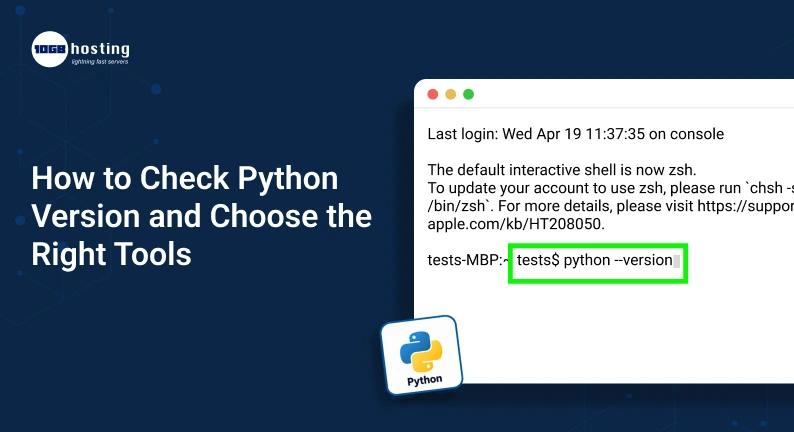
python3 -V
- Hit enter.
You might see output like:
Python 3.12.7
On macOS, a common way to run Python 3 is with python3. Depending on your system and its configuration, the command python may not exist or may point to a different installation.
To see what executable is being used, run:
which python 3
This is the path for the command. If you installed Python using a package manager or the official installer, the location may be different.
Tip: Don’t change or delete system-managed Python files to update your development version. Use a proper installer or version manager instead.
How to check Python version in Linux
Most Linux distributions come with a Terminal application that you can use to check which version of Python you have installed.
Method 1: Using the version command
Open the Terminal and type:
python3 -version
The output could look like this:
Python 3.11.9
Some systems also detect:
python -V
However, the python command may not be configured and may point to a different interpreter. Most of the time, your intent is clearer if you use python3 for modern Linux development.
Method 2: Find the Python Executable
To get the executable path, use:
which python3
For detailed information, you can run:
python3 -c “import sys; print(sys.executable); print(sys.version)”
This command will show the executable path and other version information.
Some Linux distros need some Python version for their system tools. Before you globally upgrade or replace Python, check your distribution’s recommendations. It is often safer to replace the system interpreter than to install another version of Python separately.
How to Test If Python Is Installed
Sometimes the version command returns an error instead of returning a version number. That does not always mean Python is not there. The executable might not be in your system’s PATH, or the command might be different for your operating system.
Do these checks:
Windows:
python -V
Then try:
py –version
macOS or Linux:
python3 -V
If you see a Python version on the terminal, you can use that command to start an interpreter.
If you get an error command not found or ‘python’ is not recognised as an internal or external command here are some possibilities:
- Python is not installed
- Python is installed but the path to its executable is not in your PATH.
- You’re using the wrong command for your OS.
- The installation was not finished.
- After installing you will have to re-open your terminal.
To verify that you can run code in a Python interpreter type:
print(‘Python is running’)
On Windows you can replace python3 with python or py as appropriate.
If the command prints Python is working the selected interpreter is working fine.
What to Do If Python Is Not Installed
If you don’t have Python installed, download it from the official Python website:
Select the installer appropriate for your operating system and follow the instructions for installation.
If you are on Windows and want to run Python directly from Command Prompt, listen to what the installer options say about PATH. After installation, open a new terminal and run the version check again.
Before you make the environment available to users, test the installation with the dependencies of your business applications or production servers.
How to Find Python Version In a Script
You may also wish to know the version of Python your program is running under. This can be useful if you need to troubleshoot applications, collect diagnostic information, or verify compatibility before doing certain operations.
Python has the builtin sys module for this purpose.
See the Full Version Information
Create a python file and put this code in it:
import sys
print ( sys.version )
Execute the file with your Python interpreter. The output includes the version, and may have additional build information.
Show the Major, Minor and Micro Versions
If you are just looking for version numbers, use:
import sys
print(sys.version_info[0])
print(sys.version_info[1])
print (sys.version_info.micro)
For example, an installation of Python 3.12.7 would report:
- Major number: 3
- Minor version: 12
- Micro version 7
You can also print the version in one line:
import sys
version = sys.version_info
print(f”Python {version.major}.{version.minor}.{version.micro}”)
This comes in handy when writing scripts that need to check the runtime environment.
Selecting the Best Python Development Tools
That’s just the start of how to check your Python version. You need tools that match your skills, the needs of the project and your budget.
What works for a beginner may be a very different setup than what a team managing production applications uses. Choose tools after thinking about what you want to build.
1. Pick a Python Code Editor or IDE
An editor helps you write, organise and debug your Python code. An integrated development environment (IDE) may also include project management, debugging, testing and other development features.
Common selections are:
- Visual Studio Code: A versatile editor with Git integration, debug support and Python extensions.
- PyCharm: IDE with Python-specific features for application development.
- JupyterLab: Useful for data analysis, experimentation and machine learning notebooks.
- IDLE: A simple Python development environment that could be a good choice for beginners.
Before picking one, check that it supports your operating system and your preferred Python interpreter. For example, if you are using Visual Studio Code, you should choose the correct interpreter for your project.
2. Setting Up a Virtual Environment for Each Project
A virtual environment allows you to isolate installed packages for a Python project from other Python projects.
Imagine you have two apps that you maintain. One needs an older version of a library, the other a newer release. If you put everything in one shared environment you can get conflicts.
This problem can be avoided by using a virtual environment.
make one with:
python -m venv.venv
On macOS or Linux you may need to use python3 instead:
python3 -m venv.venv
To activate it on Windows Command Prompt:
.venv\Scripts\activate.bat
On macOS or Linux :
source .venv/bin/activate
When it’s activated, install your project’s packages into that environment. To install a required package, use python -m pip install package-name . All you have to do is replace package-name with the actual package.
3. Select a Package Manager
Python packages offer reusable features that save time for developers. For example, a web framework can assist you in building an application without having to write each component from scratch.
pip is Python’s standard package installer, and it’s all you need for many projects.
See it here:
python -m pip -V
Running with python -m pip makes sure that the pip executable is invoked using the interpreter defined by the python command.
Conda can be useful for data science or scientific computing, because it can handle environments and packages other than just Python. You should choose based on the dependencies the project needs and tools your team is using.
4. Consider Cloud-Based Development Environment
It’s not always the most convenient place to develop and test applications on a local computer. A cloud-based development environment can offer a uniform workspace that can be accessed from a variety of devices.
This option can be useful when:
- Your laptop does not have much memory or processing power.
- Your team needs a common development environment.
- You’re looking to try out an application on Linux.
- You want a remote machine to use for development or staging.
- Do you want to separate development resources from your personal computer?
Suppose a developer building a Python web app wants to test the app in a Linux environment before deploying it. The developer might use a cloud VPS for this purpose. The developer can install the required version of Python, create a virtual environment and configure the application dependencies.
Compare hosting or cloud development plans on memory, CPU resources, storage, operating system support, remote access, security updates, backups, and total cost. If you need a persistent remote environment, a VPS can be useful, but a lightweight local setup might suffice for simple scripts.
Choosing the right Python version for your project
There is no single best Python version for all situations. The best bet is usually on the version of your framework, dependencies, and deployment environment support.
Before starting a project, use these steps:
- Look at the project requirements. Read the documentation for the framework and libraries you plan to use.
- Check the status of the Python release Choose a supported release with security updates and ongoing maintenance.
- Make sure it’s compatible. Make sure your dependencies are compatible with the selected version.
- Create a new environment. Use a virtual environment or other appropriate environment manager.
- Test before you deploy. Run your application’s tests and ensure that all the required packages are functioning.
- Keep dev and prod the same. List the Python version and dependencies so that another developer or server can recreate the setup.
Don’t upgrade Python for your existing applications just because there is a newer release. First, test the application and its dependencies. Upgrading the production interpreter without preparation is less reliable than a planned upgrade with compatibility checks.
Common Python Version Issues and How to Resolve Them
Even a simple version check can show you configuration mistakes. Here are some common problems and how to troubleshoot them.
The python command doesn’t work
Try python3 –version on macOS or Linux. Try py –version on Windows. If another command is working, use it consistently for the environment in question.
The Python Version Is Incorrect
You may have several installations of Python on your computer. Check the executable path, and on Windows, use py -0p if the launcher is present. Choose the interpreter you wish to use in your editor and project environment.
Packages are Installed but Can’t be Imported
It usually occurs when pip sets up a package in a different Python environment than the one running your program.
Try it:
python -m pip show package_name
Replace package-name with the package you are investigating. Run the command with the same interpreter that runs your script.
Application Works Locally but Not on Server
The server might be running a different version of Python or a different set of dependencies. Comparing the Python versions, environment configuration and installed packages of the two systems. Test the application in an environment similar to production before deploying.
Why You Should Check Your Python Version Regularly
There are a few practical benefits to including version checks in your workflow:
- Troubleshoot Faster Detects version mismatches before you spend time troubleshooting code errors.
- Better compatibility: You can choose packages and frameworks that are compatible with your interpreter.
- Better security planning: You can know if your Python release is still supported.
- More reliable deployments: Replicate the same environment in development, test and production.
- Tool choice is better: You can pick an editor, package manager, or hosting environment that suits your project.
These checks take only a few seconds, but can save you from avoidable problems later.
FAQs Frequently Asked Questions
1. How to quickly check the python version?
Open a terminal or command prompt and type python –version. If that doesn’t work, try python3 –version or py –version depending on your OS and installation.
2. How to check the Python version in CMD?
Open Windows Command Prompt. Type python –version and hit Enter. If you have Python available through that command , the terminal will show you the version installed . Or you can try py –version.
3. How to know if Python is installed?
Check your python version, like python –version, python3 –version or py –version. If there is a version, the interpreter can be reached by that command. If it doesn’t work, check your installation and PATH configuration.
4. Yes you can install multiple versions of Python.
Yeah. You can have multiple versions of Python on the same machine as long as they are properly configured. There are tools such as the Python Launcher on Windows and Python version managers that will help you pick the version each project requires.
5. Which Python version is best for beginners?
For most new learners, the best bet is to pick a supported version of Python that works with your learning resources, libraries and development tools. Before installing a version, check the official Python documentation and the requirements of any course or project you are working on.
Conclusion: Make your Python setup reliable
Knowing how to check the Python version will allow you to start projects with confidence, identify compatibility issues, and pick development tools that fit your needs. If you’re on Windows, macOS, Linux or a remote server, a simple terminal command can tell you what interpreter you have available.
Once you have checked your Python version , pick a suitable editor . Manage your project dependencies with simulated environments . Test your setup . Deploy applications . If you need a persistent remote development environment, compare cloud VPS options on resources, security, OS support, and cost.
Ready to begin working on your next Python project?
See your current Python version, check your project’s requirements, and prepare the right development environment. If you intend to develop or test applications remotely, research reliable VPS hosting options to find a setup that fits your workload and budget.