Small businesses face special challenges in efficiently organizing important data while also being smart about costs. You might find yourself using several computers to store different work documents and having to pay monthly fees for different cloud services. If you need to send documents to a team member or client, you may need to send it through email. If your files are too big, you may have to use a free service and hope that it is secure. If you’re lucky, you may be able to find a cloud service that is free for business. As your business grows, you may find yourself spending an increasingly larger portion of your time, and possibly your budget, on organizing your data.
An affordable home server can help you centralize files, applications, and other important resources for your business. With the right hardware and configuration, you can create a private and secure system for storing files and running other important applications for your business.
A home server doesn’t have to be a costly enterprise-level solution. If your business has low-to-moderate needs, you may be able to find a solution for your home server needs with a refurbished computer, mini PC, or an entry-level dedicated server.
We will discuss different home server solutions for small businesses, comparing their pros and cons, and providing you with a foundation for choosing the right server for your business while also helping you avoid overspending.
Table of Contents
What is a Home Server?
A home server is a computer or dedicated hardware that provides various services on a local network. While the term home server suggests a personal use case, small businesses can also centralize documents, host business applications, and create automated backups for development environments using a home server.
A small digital marketing agency may use a server for various things. Employees may access company resources without needing to rely on their individual computers. Company resources may include campaign files and project files. Employees may also use a self-hosted application.
Examples of home server uses include:
- Store and centralize company files.
- Do automatic backups of company computers.
- Host internal business applications.
- Create development and testing environments.
- Store documents and media.
- Host and create lightweight databases.
- Run virtual machines and containers.
- Provide private remote access to company resources.
A server used to store company documents would require less processing power and memory than a server used to run hundreds of virtual machines or a company website.
Small Businesses and Home Servers
There are several reasons small businesses may want to install a home server. Using a home server may help small businesses manage their costs and resources. How much a small business may save depends on several factors including hardware, maintenance, and the services the small business may not need to purchase.
A Home Server may also help a small business:
1. Reduce Recurring Infrastructure Costs
A business may be able to replace some of their cloud services by using a server on-site. Depending on the workload and usage, a small business may be able to replace shared storage and applications by using a single server. Replacing cloud services may also incur costs for the small business to purchase and maintain the infrastructure.
Cloud services may also provide infrastructure and services that the small business may need to manage on their own.
2. Keep Business Files in One Place
A server helps you store important files in a central location and aids in organizing business documents. It enables you to control access to files and folders.
Depending on the business structure, you can set up folders for departments, projects, and shared resources. You can also allow or restrict access to specific folders for different employees.
Centralized storage also aids in organizing backups and other administration tasks.
3. Improve Control Over Business Data
Setting up your own server gives you control over how storage is organized and access is granted or restricted.
This can be useful for businesses that handle confidential or sensitive documents.
Being the administrator of your server means you have the responsibility to secure the server, and perform regular maintenance and backups.
4. Run Business Applications Locally
A home server can also be used to run business applications. It can also be used to run inventory systems, databases, and document management systems.
For example, you can set up an internal, authorized access inventory management system for employees in the office.
Check the requirements and limitations of the application before setting up a server to run the application.
5. Growth
You can begin with a basic home server and improve its configuration as your business grows.
Some businesses use virtualization to run isolated services on a server. Others prefer to run each service on a dedicated server.
It’s important to purchase hardware that supports growth and doesn’t require an immediate replacement.
Three of the Best Options for Affordable Home Servers for Small Businesses
There’s no best home server option for small businesses. These offer varying costs, performances, flexibilities, and maintenance requirements.
1. Refurbished Desktop or Tower PC
For small businesses on a budget, a used business desktop can be an affordable way to build a home server.
Also, used business desktop PCs can be less expensive than server hardware. These have processors that can support server workloads.
Best for: File sharing, running internal applications and development environments, and performing basic backups.
Pros:
- Lower upfront costs.
- Familiar hardware and simple setup.
- Potential for later memory and storage upgrades.
- Cons: Can be power hungry, large, and noisy, with limited remote management capabilities.
Look for a PC with a processor and memory support and reliable storage connections.
2. Mini PC Home Server
Mini PCs can take up less space and run server software to support small offices.
Many mini PCs come with processors that can support small office workloads and networking.
Best for: Lightweight applications and development environments and small private services and tools.
Advantages:
- Compact size.
- Generally low power consumption.
- Quiet operation in many models.
- Easy placement in a small office.
Limitations: Some models have limited memory expansion, few drive bays, or only one network port.
3. NAS-Based Home Server
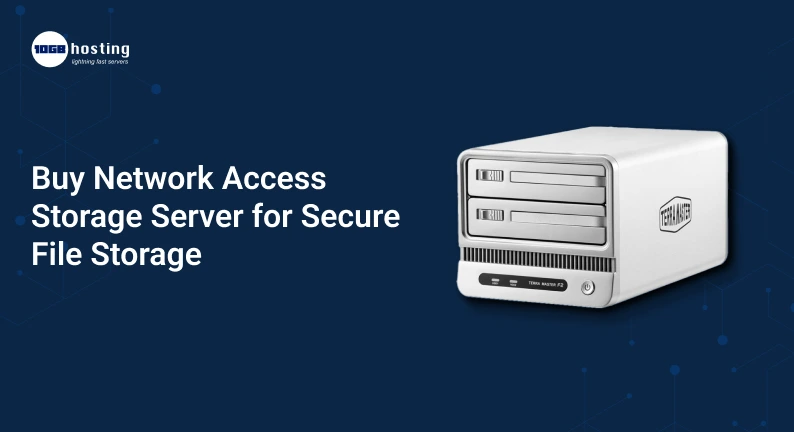
A Network Attached Storage (NAS) device is designed primarily for centralized storage and file sharing.
It is a practical choice if your main requirement is backing up computers, sharing documents, and maintaining a shared business file repository.
Best for: File storage, document sharing, media libraries, and backup management.
Advantages:
- Purpose-built storage management.
- Shared folders and user permissions.
- Backup tools on supported models.
- Straightforward administration for many common tasks.
Limitations: Entry-level NAS devices may not be suitable for demanding applications or multiple virtual machines. Drive upgrades and proprietary features can also increase costs.
Choose a NAS if storage is your priority rather than purchasing a general-purpose server with more computing power than you need.
4. Used Enterprise Server
A used rack server or tower server can provide more memory, drive bays, processing capacity, and remote management features than many entry-level systems.
However, the purchase price is only part of the total cost.
Best for: Virtualization, multiple business applications, larger storage systems, and workloads that benefit from server-grade hardware.
Advantages:
- Greater expansion potential.
- Support for multiple drives and higher memory capacities.
- Useful remote management features on supported models.
Limitations: Older enterprise servers can consume substantial electricity, produce noticeable fan noise, and require additional cooling.
Before buying, check the server’s age, firmware support, power consumption, drive compatibility, and availability of replacement parts.
5. Entry-Level Dedicated Server Hosting
A dedicated server is a physical server rented from a hosting provider rather than maintained at your business premises.
This option can be useful when you need more computing resources or public internet availability but don’t want to purchase and maintain physical hardware yourself.
Best for: Public-facing applications, remote workloads, development environments, and business services that need an externally hosted server.
Advantages:
- No need to purchase physical hardware.
- Data-center connectivity and infrastructure.
- Hosting-provider hardware maintenance.
- Potentially better suitability for internet-facing workloads.
Limitations: Monthly rental costs, management fees, backup charges, and bandwidth policies can affect the total price.
If you’re searching for the dedicated server cheapest option, compare the full monthly cost instead of focusing only on the advertised rental fee. A low-cost server with insufficient memory or expensive backups may offer less value than a slightly more capable plan.
How to Choose the Right Home Server Hardware
Before purchasing a server, understand your workload and compare with expected usage to determine if it meets your requirements.
Processor (CPU)
A server’s processor affects its ability to handle tasks like file and application requests, as well as virtualization.
A basic file server doesn’t require as much processing power as one running resource intensive applications, databases, or virtual machines.
Avoid paying for a more expensive processor if your workload doesn’t warrant it.
Memory (RAM)
Memory effects cost/performance balance and efficiency. The more memory you have the better it will be able to cache data.
How much memory you will need depends on your virtualization strategy. Lightweight workloads can be served with less memory, but intensive workloads will require more.
If you plan on running many workloads it is best to go with more memory.
Storage (and its Reliability)
Storage must be redundant as you cannot always get business files back.
- HDD: Good for bulk and archive storage.
- SSD: Faster storage for OSes, Apps, and Workloads.
- Storage Availability: Improves availability by reducing the risk of a single point of failure.
- Independent Backups: Protects against total loss of data which can’t be recovered by redundancy.
Estimate the growth of your data and choose an appropriate capacity of storage.
Network Connectivity
Gigabit Ethernet is good for a small business office workload.
Higher speed networking may be needed if there are large media files or a lot of simultaneous storage access.
Make sure your switches, cables, and client PCs are up to date before investing in faster server networking.
Power Consumption
A server can increase your electricity costs if it is always on.
A server that is always on and averages 50 watts will consume approximately 36 kWh in a month at an average cost of electricity of ₹8 per kWh. That would increase your electric costs by ₹288 per month (not including the costs to cool the server and other equipment).
Price is an important consideration, but don’t just look at the purchase cost. Think about the long term expense including the power consumption of each device. Look at the cost of each option using your local power rates and the expected power consumption of each device.
Step-by-Step Guide to Setting Up an Affordable Home Server
Hardware has been chosen. Following is the procedure to create a server system that is usable and maintainable.
Step 1. Define Your Requirements
What does your server need to do?
Make a list of tasks to include shared files, scheduled backups, development environments, or any custom applications used for your business.
Consider the number of expected users, the amount of storage required, the performance of the system, and whether access will be required from off the premises.
Step 2. Choose Your Operating System
Your operating system affects compatibility, administration, and available software.
Common options include:
- Ubuntu Server: Suitable for many Linux-based server applications.
- Debian: A popular choice for stable, general-purpose server deployments.
- Windows Server: Useful when you require Windows-specific services or integrations.
- NAS operating systems: Designed to simplify storage management on compatible hardware.
Choose an operating system that your team can maintain and that supports the applications you need.
Step 3. Install and Configure the Hardware
Install the RAM and storage drives. Connect to your LAN. Ensure there is sufficient ventilation.
For a continuous operation server, use a quality power supply and consider a UPS.
Step 4. Configure User Accounts and Security
Create user accounts. Give each user the least privilege required for their task.
Update security patches. Use stronger passwords. Enable MFA if offered. Disable unneeded services.
For remote access, use a secure method, like a VPN, and do not expose your admin services to the world.
Step 5: Backups and Monitoring
Create a backup schedule to protect your business data. Have at least one copy stored independently and elsewhere.
Monitor your disks and system for potential problems. Familiarize yourself with recovery procedures.
Step 6: Depend on Server with Confidence
Check that users can access the correct files and that applications work correctly. Check that your backups completed successfully.
Restore files to test the process. Document recovery steps.
A server should be ready for routine maintenance and unexpected problems before you depend on it for important business processes.
Real World Home Server Examples
Some affordable server solutions can help different businesses in various ways.
A small marketing agency: A refurbished desktop can host an internal tool and shared client files, with permissions to separate user accounts.
A freelance development team: A mini PC can run services and apps, as well as control and test application versions.
A retail business: A NAS (network attached storage) could store invoices, product documents, and backups of office documents. A business could also consider a cloud backup for additional security of the important files.
A growing technology business: A used enterprise server could support several virtual machines for development, testing, and various internal applications. Prior to going down this route, the business should determine the costs associated with power, cooling, and maintenance.
The examples provided are just a few possible configurations based on the number of users and the applications required, as well as the level of downtime your business can absorb.
Common Mistakes to Avoid When Buying a Home Server
Here are some common mistakes to avoid when considering a home server:
- Buying too much hardware: Expensive processors and excessive memory may not benefit a simple file server.
- Not thinking about electricity costs: Old hardware can be expensive to run continuously.
- Using RAID as a backup: A redundant array of inexpensive disks does not protect data against all methods of loss.
- Leaving a server unprotected: Old software and default/weak server credentials can put business data at risk.
- Not considering hardware limits: Some hardware may not support larger memory configurations, different drives, advanced networking, and various OSes.
- Not creating a maintenance plan: A server requires regular maintenance and updates, as well as tested recovery plans.
- Not thinking about remote access: VPN may be needed to secure remote access.
A little planning can prevent unnecessary costs and reduce the risk of avoidable downtime.
Frequently Asked Questions
1. What is the cheapest way to build a home server?
A cheap used desktop or an affordable mini PC is a good starting point for light workloads. Compare the cost, energy consumption, and storage against a NAS or other options before deciding.
2. Is a home server good for a small business?
Yes. A home server can do file sharing and backups as well as host business applications and development tools. A business that stores sensitive or critical data should look into security and backups as well as plan for hardware failures and data loss.
3. Buy a home server or a dedicated server?
A home server lets you use your own hardware, but you’ll have to provide your own power, data, and phone line and secure it against theft. A dedicated server provides no physical hardware for you to secure, but has ongoing costs and terms set by the provider.
4. How much RAM does a home server need?
A good starting point for memory is to look at a home server’s requirements for the OS and applications. A file server or NAS can get away with less RAM, but a home server with multiple VMs or a DB server could need much more. Consider your starting point and think about how much you will need in the future.
5. Can I access my home server remotely?
Yes. There are secure ways to remotely access your home server using a VPN or other solutions we support. It is important to use strong authentication, keep software and applications up to date, and do not expose your server to the public Internet. The performance of your server connection and your network configuration will impact the performance of your remote access connection.
Conclusion: An affordable home server can help small businesses with many of the same benefits as Enterprise Level hardware
There’s no reason you can’t start small and grow as the need arises. A refurbished desktop can handle basic services, a mini PC can handle basic applications, and a NAS can handle storage.
If your workload requires you to expand capacity or you prefer to outsource this responsibility, it may be prudent to evaluate dedicated server hosting solutions.
Prior to making any purchases you should define the workload requirements and constraints. Consider energy costs, security and growth. You will want to budget for independent backups and maintenance.
When you’re ready, find the best solutions within your budget that offer the performance and scalability you require for your business.