Administering files across several PCs, staff members and enterprise websites can quickly become overwhelming. Critical files end up misplaced across different PCs, external hard drives, cloud accounts, emails and other file sharing services. Figuring out which files are the latest versions, and sharing files can consume a lot of time. Worst still, a hard drive can fail putting all the valuable business data at risk.
A Network Attached Storage (NAS) server helps with all these by providing a centralized location to store, organize, share and protect files. Whether it is a small business, a creative team or a user in need of secure file storage and management, a Network Attached Storage (NAS) server can be very helpful.
There are, however, other factors to consider when picking a NAS server besides capacity and price. You need to look at data protection, remote access, performance, user permissions, and the future requirements for storage.
In this guide, you will learn the inner workings of a NAS server and other features to consider before purchasing one. We cover how to set up a NAS server and provide a recommendation on how to pick the best NAS server based on your requirements and budget.
Table of Contents
What is a Network Access Storage Server?
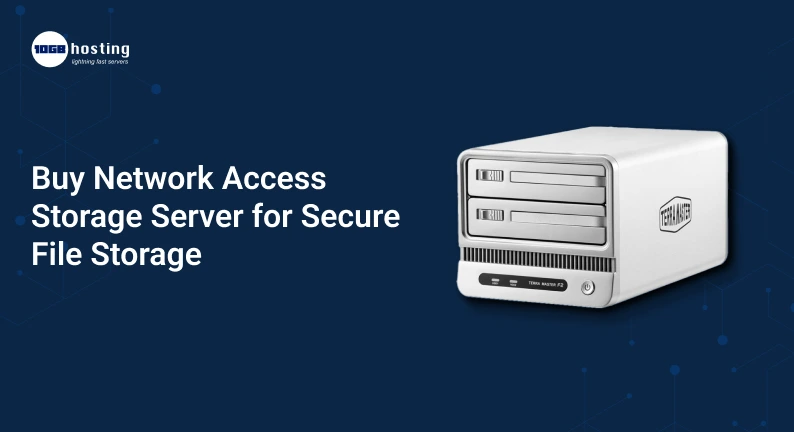
A Network Access Storage Server, otherwise known as a Network Attached Storage (NAS) server, is a storage device that is connected to a network and dedicated for storage. It allows several user devices and/or user accounts to access and store files.
A NAS (network attached storage) is made up of one or more hard or solid state drives, a network connection, and an embedded operating system to manage users, storage and file sharing.
Like a personal storage device, a NAS can store data for multiple users, but a NAS is connected to a network, rather than a single computer. Users can be located on the same or different networks and a secure internet connection can be used to access the NAS remotely.
For example, a company with 10 employees can use a NAS to store all their company documents, spreadsheets, contracts and media files. Rather than emailing large files to each other, employees can access file shares on the NAS.
Other uses for a NAS include:
- Centralized storage of the company’s digital assets and files.
- Company computer backups.
- File sharing for employees.
- Personal storage of files, photos and videos.
- Storing company records.
- Access company files from anywhere.
- Company data and recovery plan.
NAS devices can be used for any sized business and personal use and offers a number of advanced features.
Why Should You Buy a Network Access Storage Server?
Investing in a NAS server can improve how your business manages information. Here are the main benefits to consider.
1. Centralized File Management
When files are spread across several computers, maintaining consistent versions becomes difficult. A NAS gives your team a shared storage location for approved documents, media assets, and project files.
For example, a marketing agency can store design files, campaign reports, and client documents in separate shared folders. Team members can access the files they need without keeping multiple copies on personal devices.
Centralized storage also makes it easier to establish consistent folder structures and access policies.
2. More Control Over Data Security
With a NAS, you can choose who accesses your files and folders, and how they do it. Different NAS models may vary in the level of controls they offer. Those controls may include creating user accounts, assigning folder permissions, restricting admin access, and enabling/disabling files and folders encryption.
These controls come in handy when there is a need to secure access to different business documents by different employees.
A purchased NAS does not automatically secure your data. There are many other things you have to do, including using strong passwords, setting up multifactor authentication where available, updating the firmware and other security protocols.
3. Remote Access to Business Documents
With remote access, employees can access business documents from anywhere and at any time.
A designer for example, may need to access an extremely large file from the office NAS to continue working on a project from home. With an appropriate remote access solution, the designer can access the file from home without needing someone in the office to email it to him/her.
The quality of the remote access solution, and the speed of your internet connection, will determine how easy it is to access the NAS.
4. Automated Backups
A NAS can automatically back up your mobile device, computer, shared folders and other supported cloud services. Backup scheduling can be done to the hour.
You can set up automated backups rather than rely on employees to do it manually.
Certain models support snapshots, which can help restore older versions of files in case of unintentional removal or certain ransomware incidents. Capabilities of snapshots and retention period vary with model and file system.
Remember, RAID, snapshots and NAS storage are not alternatives to independent backup. An independent backup copy is imperative in case NAS storage is stolen, physically damaged, or compromised.
5. Storage Capacity Expansion
With growing business, your storage needs may increase too. You may start with just a few terabytes of data and later require more space for large files such as videos, customer data or project archives.
Based on the model, capacity of the device can be increased by driving replacement, driving addition, attachment of expansion units or purchase of larger NAS.
Prior to purchase, find out the maximum supported capacity, compatibility of drives, expansion options, and net effective storage after other redundancies.
Important Things to Check Before Buying a NAS Server
Relying on the number of drive bays to make a NAS purchase can result in over or under spending, or inadequate performance. Here are some other features you should analyze.
Storage Capacity and Drive Bays
A 2-bay NAS is good for home or small office use, while a 4-bay or higher NAS can be good for business use. Analyze the data you have now and the data you are likely to collect in the next couple of years.
Also consider whether you need redundancy. Two drives configured as a mirror protect against a single drive failure, for example, but usable capacity is generally limited to approximately the size of a single drive.
Hard disk drives (HDDs) are usually less expensive per terabyte and can be used for large archives and backups.
Solid-state drives (SSDs) can provide faster access times and be useful for workloads that require frequent small file access or high responsiveness.
Some NAS devices can support a combination of SSD and HDD drives, allowing you to balance capacity, performance, and cost.
Network Speed and Hardware Performance
The performance of the NAS hardware and the network connection impact the speed at which users can access files.
Look for:
- Gigabit Ethernet for basic office and home workloads.
- 2.5GbE or 10GbE for high-performance workloads.
- Adequate CPU and memory for the workload being supported.
- Compatible networking equipment to support the desired speeds.
10GbE NAS solutions will not give 10Gbps file transfers if the computer, networking equipment, and cables cannot support that speed. Other factors that impact speed include drive and file size, protocols, and workload.
RAID and Data Redundancy
RAID offers a means to combine multiple drives into an arrangement that improves performance and/or data protection against certain drive failures.
Common configurations include RAID 1, RAID 5, and RAID 6. The best configuration depends on how many drives are used, the value of the data, and the recovery requirements.
While RAID provides protection against some drive failures, it does not protect against data loss in other ways. Data can still be lost due to human error, theft, loss, or damage due to fire, flood, or other disasters.
Security and Remote Access Features
For remote access to be of value, determine if the NAS provides secure remote connections, encrypted connection, multifactor authentication, and/or user permissions.
Security and ease of use are equally important. Don’t select a device merely because it can be accessed remotely.
For use in a business, check if the manufacturer supports the device with security updates after the warranty is over, if the manufacturer provides administrator controls, audit logs, and what support the manufacturer gives during the support lifecycle.
Set Up a Network Attached Storage Server
Once you have selected your device, follow these steps to prepare it for everyday use.
Step 1: Install compatible storage drives
Check the manufacturer’s compatibility list, install the drives according to its instructions, and connect the NAS to a reliable power source and network connection.
Step 2: Configure the NAS operating system
Use the manufacturer’s setup process to initialize the device, install available stable updates, configure the storage pool, and create the required shared folders.
Step 3: Create user accounts and permissions
Give each employee or family member a separate account. Restrict access to sensitive folders and avoid using a shared administrator account for everyday file access.
Step 4: Enable security protections
Set strong, unique passwords, enable multifactor authentication if available, disable unused services, and configure automatic security notifications or updates where appropriate.
Step 5: Configure backups
Schedule backups from computers to the NAS and maintain a separate backup copy on another device or secure off-site destination. Test file restoration before relying on the system.
Step 6: Test local and remote access
Confirm that authorized users can open the correct folders, upload files, and restore data when needed. If remote access is required, test it from an external network after configuring a secure connection.
How to Enable NAS Server Access Over the Internet
There are a few ways to configure remote connectivity to your NAS server.
Use the Manufacturer’s Secure Remote-Access Service
Some NAS manufacturers provide a service to remotely connect to your NAS through a browser or mobile app. Review the service’s privacy and security features and decide if you are comfortable using the service.
Use a VPN Connection
A VPN creates an encrypted connection to your home or office network. Once connected, you can access the NAS server according to the network’s permissions and your user permissions.
This service is suitable for a business to give employees remote access to the NAS.
Configure Remote Access on QNAP NAS
Consult the user guide for your QNAP NAS for remote access features. Some models have myQNAPcloud services and remote access features. Other models may have a remote access feature if a VPN is configured.
To enable more secure remote access:
1. Update NAS firmware and apps.
2. Enable strong authentication on administrator accounts.
3. Adjust remote access permissions.
4. Use secure connections and disable or block the access of non-essential services.
5. Disable unused services.
Unless you understand the security requirements and can explain the trade-offs, do not expose NAS administration or file sharing services to the Internet. The same is generally true for remote access. The aim should be to enable secure remote access when needed and to avoid unnecessary exposure.
There are several examples showing real-world scenarios where NAS is beneficial.
A NAS can support various workloads depending on its capacity, software, and networking.
Small Businesses: Documents such as contracts or invoices can be centralized along with employee personal documents. Depending on permissions, only the employee or manager of that employee can access the documents.
Creative Professionals: A centralized repository for large media files can be stored and made available to the professional via NAS. Editing workloads may require local hardware.
Home Users: Centralize backups of personal computers, stored family photos, and media files.
Remote Teams: NAS may be as secure, or more secure, than cloud storage for file sharing for teams and may be advantageous where remote teams need to collaborate and edit work concurrently.
There are a number of use cases where NAS is beneficial, depending on the requirements.
Mistakes To Avoid When Buying a NAS
Here are the most common mistakes when buying a NAS:
- Not accounting for growth: When thinking about how much storage you need, think about how much you’ll need in the future, not just how much you need now.
- Assuming RAID means data safety: RAID protects data in the case of a hard drive failure, but it doesn’t protect against everything and you should always maintain an extra copy of important data.
- Ignoring drive compatibility: You should always use drives that are supported by the NAS manufacturer and are also appropriate for your expected workload.
- Not adjusting the default security settings: Change default admin and user accounts and leave other security settings enabled and adjusted to your preferences.
- Exposing NAS to the public internet: Only enable the remote-access features that you’ll actually be using and disable the rest.
- Failing to consider the total cost of ownership: Consider all costs including drives, expansion, backups, and licenses.
- Not testing recovery: Always make sure your backups can actually restore your important data.
Buying and setting up a NAS the right way will help you avoid other costs related to storage and data security.
Frequently Asked Questions
1. What is the difference between a NAS server and an external hard drive?
A NAS is similar to an external hard drive because both are storage devices, but a NAS is connected to a network to make storage accessible to multiple devices, whereas external hard drives are connected directly to a computer. A NAS can also offer different features such as automated backups and remote access, depending on the model.
2. Can I access my NAS server from anywhere?
Most NAS devices can be accessed remotely using the services provided by the manufacturer, VPNs or other secured services. You’ll need to make sure the NAS is configured correctly and you have the proper permissions. Also make sure you’re not exposing unnecessary services to the public internet.
3. Is a NAS server secure for business files?
A NAS can provide a baseline of security, but whether it is adequate for your business files will depend on the configuration and practices around updates and account management.
4. How much storage do I need for a NAS server?
It is difficult to say exactly how much storage you will need since it will depend on the amount and type of data that you want to store. If you want to store a lot of different types of data a small NAS may not be ideal and you would want to look at a different solution. If you want to store a large volume of a single type of data, you may want to look at a different solution.
5. Is a NAS server better than cloud storage?
There are benefits to using a NAS over cloud storage. Depending on how your business is configured, a NAS can be a better option than cloud storage.
Conclusion: Purchase the Appropriate Network Access Storage Server for Secure File Storage
Using a network access storage server can improve the organization of file management, increase collaboration, and provide more control over the business’s data. It can also be configured to support growing storage requirements. With the right hardware and configuration, it can support automated backups, secure remote access, and other features.
When shopping for a NAS server, look at the storage capacity, drive bays, network speeds, redundancy options, security features, and the manufacturer’s support policies. See what the options are for future proofing. When choosing a NAS, look at how secure and reliable it is from the beginning.
Recovering files and securing remote access are a few of the features that help ensure that your data storage is reliable. Performing recovery tests helps give the users of the storage system peace of mind.
If you want to better manage, secure, and store your files, check out NAS servers from Synology, QNAP, and ASUSTOR. When comparing NAS servers, look at the features and performance that relate to your needs. Find a storage solution that helps protect your files.