You are ready to launch a Python program, install a new library, or start a development project when you notice an error message that says, “This package requires Python 3.8 or higher.” The first thing that springs to mind at that point is: What version of Python is on my computer? In such situations, knowing how to check python version in cmd becomes extremely helpful, because it allows you to quickly confirm whether your installed Python version meets the requirement before running the program or installing the library.
This happens to a lot of new and even experienced engineers. The good news is that it only takes a few seconds and is very easy to verify the Python version on your computer using Command Prompt (CMD).
This post will show you how to use a simple command to verify the version of Python in CMD. We will also talk about what Python versions are, why they are important, how to tell them apart, and how to fix common problems. We will also talk about other questions, such as how to check the version of Python in CMD and how to find the version of TensorFlow in CMD.
By the time you finish reading this article, you will know exactly how to find out what version of Python is installed on your computer.
Table of Contents
What is a version of Python?
Python is a well-known programming language that is always changing. A version is what the Python developers call each new update. These versions come with new features, bug repairs, security updates, and other improvements.
There are two main version families for Python, for example:
- Python 2.x is an older version that is no longer maintained.
- Python 3.x is the most up-to-date and extensively used version of Python.
There are several versions of Python 3, including Python 3.7, Python 3.8, Python 3.9, Python 3.10, and subsequent versions.
Different versions may act in slightly different ways. Some libraries and frameworks only operate with certain versions of Python. This is why developers typically have to check the version they have installed before starting a new project or adding new packages.
Why You Should Check the Version of Python
A lot of beginners don’t realise how vital it is to know what version of Python they have installed. It changes the way programs work and the tools you can utilize.
Here are some important reasons why it’s important to check your Python version.
1. Compatibility with libraries
A lot of Python libraries only work with certain versions. For instance, TensorFlow and PyTorch, which are both machine learning frameworks, might need Python 3.8 or above.
You may get errors if you try to install them on a version that isn’t supported.
2. Staying Away from Program Errors
Only the latest versions of Python have some functionalities. If you try to run code that was created for Python 3.10 on Python 3.6, it could not work since some syntax or functions aren’t supported.
3. Making and fixing things
One of the first things developers ask when they share a project or work together is what version of Python they are using. This information makes it easier to find problems promptly.
4. Having more than one Python installation
Some machines have more than one version of Python installed. Checking the version makes sure that the right one is being utilised.
How to Find Out What Version of Python You Have in CMD
Using Windows Command Prompt, or CMD, is the quickest way to find out what version of Python you have.
Command Prompt is a Windows feature that comes with the operating system. It lets you perform commands and talk to your computer.
Step 1: Launch Command Prompt
To begin, you need to open the Command Prompt.
You can do this by either typing “Command Prompt” into the Windows search bar or using the Run dialogue box.
When it opens, you will see a terminal window where you can enter commands.
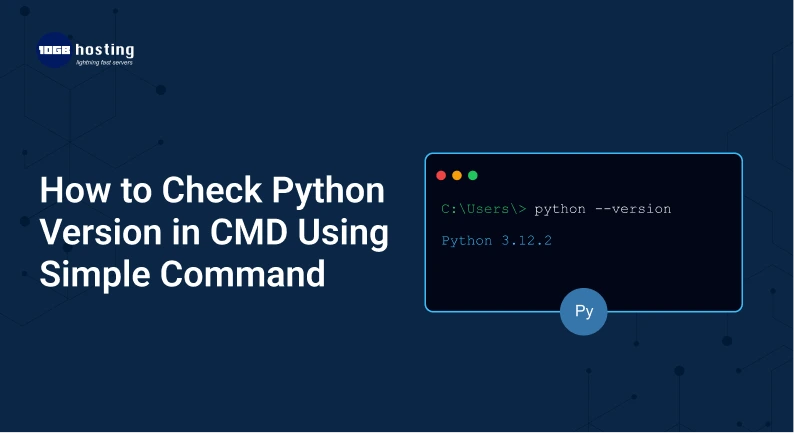
Step 2: Type the Python Version Command
In the Command Prompt window, type the command that shows the version of Python that is installed.
As soon as you hit Enter, the system will show you the version of Python that is on your machine.
Step 3: Look at the Output
The result will usually look like this:
3.10.5 of Python
This just implies that your computer has Python 3.10.5 installed right now.
That’s all it takes. Most of the time, the process takes less than five seconds.
Another way to find out what version of Python you have in CMD
Depending on how the system is set up, the main command might not always operate. In some circumstances, there are other commands that will also reveal the version of Python.
These other ways do the same thing and are often utilized by developers.
If Python is set up correctly on your machine, at least one of these commands will show you the version that is installed.
What if CMD doesn’t recognise Python?
Some people may get an error when they try to check the version of Python. The notice may say that Python is not a command.
This happens most of the time for two reasons.
Python Is Not Installed
CMD won’t be able to understand the command if Python isn’t installed on your PC. In this scenario, you should get Python from the official Python website.
Python Is Not Part of the System Path
The system may not know where to find Python even if it is installed. This happens when you don’t add Python to the PATH environment variable when you install it.
Usually, reinstalling Python and choosing the option to add Python to the system PATH fixes this problem.
How to Use the Python Interpreter to Check the Version of Python
You may also find out the Python version in CMD by using the Python interpreter.
When you start Python in interactive mode, the terminal normally shows the version number of Python in the first line.
Developers that are already working in Python commonly employ this method.
How to Find Out How Many Python Versions Are on Windows
Some programmers install more than one version of Python for various projects.
For example:
- Python 3.8 might be needed for one project.
- Python 3.11 may be needed for another project.
The Python Launcher is a utility that comes with Windows that helps you manage more than one installation.
You may see a list of all the Python versions that are installed on your computer by using the right command.
This makes it easier to choose the right version when you execute scripts or construct virtual environments.
How to Check the Version of TensorFlow in CMD
You might also wish to verify the version of installed libraries like TensorFlow if you work in data science or machine learning.
One of the most popular frameworks for creating AI and deep learning apps is TensorFlow.
You can use a command in CMD that provides the details of installed Python packages to find the TensorFlow version.
The output will show information like:
- Name of the package
- Version that is installed
- What it is
- Dependencies
This is incredibly helpful when trying to figure out why Python and machine learning libraries aren’t working together.
Example from the real world
A student gets a Python project from GitHub. The project documentation specifies that the software has to be running on Python 3.9 or a newer version.
Before starting the project, the student decides to check the installed Python version. They open Command Prompt and learn how to check python version in cmd using a simple command.
After running the command, they find that their PC is running Python 3.7.
Because the version is old, the program might not work right. The project works fine now that Python has been updated to a newer version.
This quick step of learning how to check python version in cmd can save you hours of misunderstanding and debugging.
Why It’s Good to Know Your Python Version
There are many benefits to checking your Python version on a regular basis.
Better compatibility with projects
You can make sure that your Python environment meets the needs of your project.
Troubleshooting is easier
One of the first things to do when there are errors is to check the version of Python.
Better Workflow for Development
Developers that work with more than one environment can simply check which version they are using.
How to Avoid Problems with Installation
Unsupported versions of Python are the cause of many installation problems. This can be avoided by checking the version.
Mistakes that beginners often make
When beginners learn how to check the version of Python in CMD, they sometimes make little mistakes.
Typing the Command Wrong
CMD might not recognise the command if there is even a slight misspelling in it.
Running the Command in the Wrong Terminal
Users may run commands in a terminal or environment other than the one where Python is installed.
Not restarting CMD after installation
If you just installed Python, you might need to restart the command prompt for the version command to operate right.
Common Questions (FAQs)
1. How do I find out what version of Python I have in CMD?
You may find out what version of Python you have by opening Command Prompt and typing in the command that shows the installed version. The output will reveal the version number right away.
2. What to do if the command doesn’t work to find out what version of Python you have?
If the normal command doesn’t work, Python might not be installed or set up correctly in the system PATH. The problem normally goes away when you install or reinstall Python.
3. Is it possible to have more than one version of Python on the same computer?
Yes, a lot of developers install more than one version of Python for different projects. You may quickly list and manage these installations with Windows tools.
4. How do you check the version of TensorFlow in CMD?
You may find out what version of TensorFlow you have installed by running a program in your Python environment that shows package details.
5. Why is it vital to know what version of Python you have?
Knowing the version of Python helps make sure that libraries work with it, stops errors, and lets developers fix problems faster.
Final Thoughts
Everyone who works with Python should know how to check the version of Python in CMD. Knowing what version of Python you have installed can help you prevent problems with compatibility and make sure that applications work properly, whether you are a beginner, student, developer, or data scientist.
You can quickly find out what version of Python you have by opening Command Prompt and typing in a simple command. This short process can save you a lot of time when you need to install packages, fix bugs, or start new projects.
It also helps when using libraries and frameworks like TensorFlow, which often need certain versions of Python.
Call to Action
If this article helped you, you might want to look for other beginner-friendly lessons on Python, programming tools, and development environments. These little but vital commands will make your coding career a lot easier.
Keep being curious, keep practicing, and keep improving your Python skills little by little.