Curious about safer alternatives to run a different OS?
Have you ever wanted to run Linux on your Windows laptop, try a new OS, or run deprecated software you used to run? If you are like most people, your thinking stops there because it feels too risky or too technical.
Don’t worry — getting started with virtualbox download is much easier than it sounds.
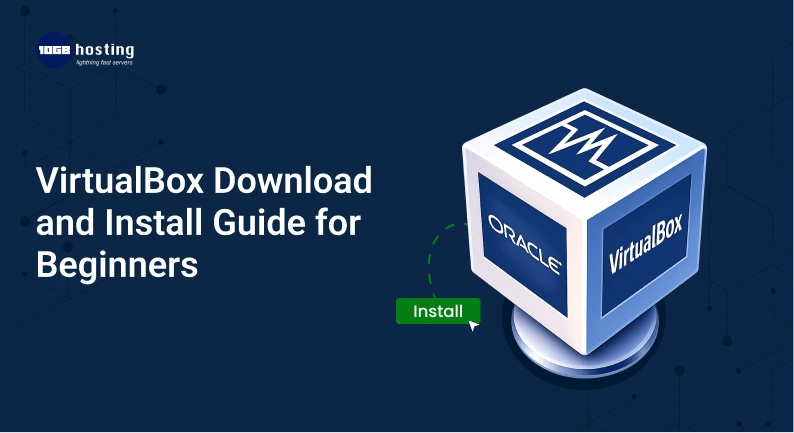
Oracle VM VirtualBox lets you run a guest operating system without removing Windows or formatting your hard drive.
This is a simple, beginner-friendly guide to virtualbox download and installation that will walk you through each step, so you can get started quickly even if you’ve never done this before.
Table of Contents
What is VirtualBox?
Simply put, it is a program that you can use to run a guest OS on your host OS.
What is a guest OS?
- Your house is your real computer.
- A virtual machine is like a room in your house.
You are able to run another OS (Room)
- Windows
- Linux
- Ubuntu
- And even old versions of these Operating Systems
And the best part of it, your core machine is safe and if something goes wrong, it stays safe.
What is the purpose of using VirtualBox?
Before we head to the download and install tutorial of VirtualBox, let’s see some of the reasons why people use it.
1. You can try out new operating systems
Want to use Linux but you can’t get rid of Windows?
You can give it a test run using VirtualBox.
2. Trials without consequences
Devs can test apps and systems without the fear of damage to their system.
3. Use Legacy Software
Certain Legacy Software may not run with the most recent version of Windows. Legacy Software can be run through a virtual machine.
4. Experimenting without consequences
VirtualBox can be used by students to practice networking, programming and system design.
Lightweight Specification:
Before you download VirtualBox, check if it is compatible with your system.
Minimum Specification:
- 4 GB of RAM (8 GB is recommended)
- 20 GB free storage (SSD is recommended)
- 64-bit CPU (must support virtualization)
Recommendation:
- Enable VT-x or AMD-V in the BIOS
Downloading and Installing VirtualBox
Here is the most crucial section of this tutorial: How to download and install VirtualBox
Step 1: Downloading VirtualBox
Go to the official Oracle Corporations site. Find the VirtualBox download and choose the one that corresponds to your OS
- Windows (popular)
- macOS
- Linux
Step 2: Windows VirtualBox
After the download:
- Run the installer
- Click Next
- Use the default options (best choice for beginners)
- Click Install
- Accept any Windows security prompts
Click Finish once the install is completed.
Step 3: Downloading Windows OS
You can run a virtual machine by downloading a Windows OS.
You can use:
- Ubuntu is beginner-friendly and there’s no cost involved with installing Ubuntu.
To get an Ubuntu ISO image, navigate to the Ubuntu website and download it.
Step 4: Preparation of a Virtual Machine
Start VirtualBox. Then:
- Click New.
- Choose a name, such as Ubuntu VM.
- Select:
- Type: Linux
- Version: Ubuntu (64 bit)
- Allocate memory (RAM) to the virtual machine.
- This will be a minimum of 2 GB.
- The recommended amount of RAM a virtual machine can use is 4 GB.
- Create a virtual hard drive. Select:
- VDI (VirtualBox Disk Image)
- Select Dynamically allocated
- For the size, 20 to 40 GB is a good start.
For the virtual machine’s hard disk, click Create.
Step 5: The addition of the ISO file
Link the OS file. To do this:
- Select your VM
- Under the Settings tab, click Storage
- Select the disc icon to the right of ‘Empty’
- Locate and select the ISO file that was recently downloaded
Click OK
Step 6: Starting the Virtual Machine
Click Start.
- The virtual computer will turn on.
- To install Ubuntu (or any operating system),
Real-Life Example (Easy to Relate)
Let’s say you’re a student learning coding.
- Your laptop runs Windows
- Your course requires Linux
Instead of formatting your laptop, you:
- Install VirtualBox
- Create a virtual machine
- Run Linux inside it
Now you can:
- Practice coding
- Test commands
- Break things and fix them
All without harming your main system.
Not Allowing Virtualization
Check your BIOS settings if things run slowly in VirtualBox.
Not Enough Disc Space
Make sure you give them enough space (such as 20GB or more).
Things to do Improve Performance
If you want to improve your VirtualBox experience give these things a try:
- Use SSD not HDD
- Provide enough RAM (but not more than the maximum allowed)
- Close down unused apps
- Take advantage of the Guest Additions feature, it may improve graphics performance and increase speed.
Benefits of VirtualBox
VirtualBox can be described as:
- ✔ Open
- ✔ A place to test safely
- ✔ Use more than 1
- ✔ Use it to learn
- ✔ A place to test safely
VirtualBox vs Dual Boot (Quick Comparison)
| Feature | VirtualBox | Dual Boot |
| Risk | Safe | Medium |
| Setup | Easy | Complex |
| Speed | Slightly slower | Full speed |
| Flexibility | High | Limited |
For beginners, VirtualBox is the better choice.
VirtualBox Frequently Asked Questions
1. Do I have to pay for VirtualBox?
No. VirtualBox should remain free.
2. Is it possible to run Windows on VirtualBox?
Yes. You can run Windows on VirtualBox with the use of an ISO.
3. What makes VirtualBox run slowly?
This can be a result of running too many programs or not enough RAM, or if virtualization is disabled.
4. Does it run in a safe manner?
Yes. It keeps your primary system safe by running in an isolated space.
5. Must I be on the Internet in order to run it?
You must be on the Internet only to download the software, after you will be able to run it offline.
Final Thoughts
It may seem complicated to create a virtual PC but here are clear step-by-step instructions for how to download and set up VirtualBox to make it a breeze for anyone.
If you want to:
- Learn how to use Linux
- Try out apps
- Explore new systems
Then you can do all this within VirtualBox while being completely safe.
Call to Action
Ready to give it a try?
Download VirtualBox and build your new virtual PC. You can start exploring new operating systems safely.
If you liked this article, be sure to check out more tech lessons for beginners to continue improving your skills!