Running apps in containers sounds easy enough, until your containers start fighting for CPU, memory, storage and network resources. A wrong VPS can turn a fast Docker deployment into a slow, unstable mess with surprise downtime.
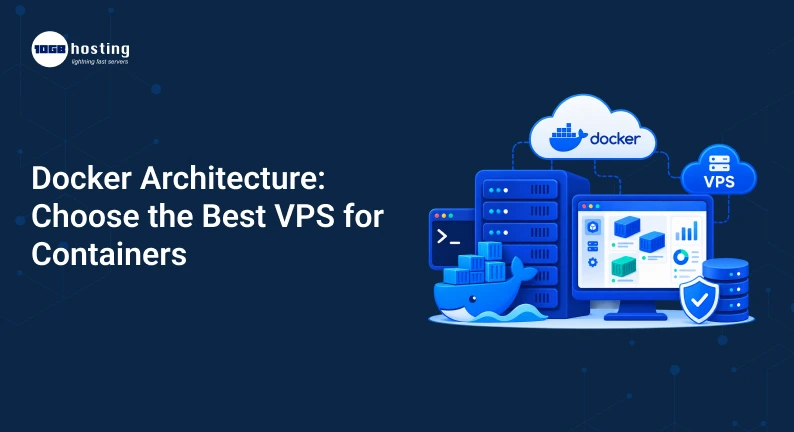
That’s why it’s important to know about Docker architecture when choosing a VPS for containerised applications. Docker is more than a tool for packaging applications. Its architecture defines how containers interact with each other, how images are managed, how resources are consumed, and how your applications run on a server.
In this tutorial, we’ll review the architecture of Docker, its main components, how Docker works on a VPS, and give you some practical advice on choosing the right VPS for containers. Whether you’re deploying a small website, API, database, SaaS application, or multiple microservices, these insights will help you make a better hosting decision.
Table of Contents
What Is Docker Architecture?
Docker architecture refers to the structure and components that allow Docker to build, manage, run and communicate with containers.
The architecture of Docker is client-server type. The Docker client communicates with the Docker daemon . The daemon does all the heavy lifting for you, such as creating containers, managing images, configuring networks, and storing data .
Docker Architecture The architecture of the docker is simple as follows:
Docker Client → Docker Daemon → Docker Objects.
The primary Docker objects are:
- Containers
- Photographs
- Networks
- Volumes,
- Extensions and other resources
If you are new to Docker, consider this analogy of a restaurant. The Docker client is where you place the order, the Docker daemon is the kitchen that prepares it, Docker images are the recipes and containers are the finished meals being served.
Docker Architecture Diagram : How the Components Works
Simple Architecture Flow
Docker Client → Docker API / CLI → Docker Daemon → Images / Containers / Networks / Volumes → VPS / Host
Host / VPS
This allows Docker to decouple the packaging of an application from running an application.
The docker client provides commands such as:
docker run nginx.
The request is sent to the Docker daemon, which locates the image you want, builds the container, provisions the resources and networking, and runs the application.
Docker Architecture: Major Components
Knowing the main components helps you pick the right VPS for Docker workloads.
1. Docker CLI
The docker client is the interface developers use to talk to docker.
The command-line interface is often used to:
docker fetch
docker build
docker run
docker stop
restart docker
docker ps
The client talks to the Docker daemon by means of the Docker API.
2. Docker daemon
Docker daemon is one of the important components of the Docker architecture.
It runs in the background and handles:
- Containers
- Photographs
- Net Work
- Volumes of storage
- Container life cycle
- Docker related operations
The daemon is the one that runs and manages containers. So, the VPS needs to have enough CPU and RAM to handle the workloads it is controlling.
3. Docker Images
A Docker image is a read-only template to create containers.
For instance, you can pick an image that includes:
- humanity
- Nginx (engine-x)
- Node.js
- Python
- PHP
- MySQL’s
- Redis
Developers may also use a Dockerfile to create custom images.
4. Docker Container Container
Docker images are templates. Containers are running images.
A container packages an application and its dependencies in a sandboxed environment. This allows easier movement of applications across development, testing, staging and production environments.
For example a web application might have separate containers for:
- Front End
- API backend
- Data base
- Redis cache
- BACKGROUNDER
This is the way of modern microservices environments.
5. Docker Registries
A Docker registry is a place where Docker images are stored and distributed.
Developers are able to pull images from public registries or use private registries for internal applications.
A typical workflow is:
Dockerfile:
↓
Create Image
↓
Push to Docker Registry
↓
Image Pull on VPS
↓
Start Container
6. Docker Networking
Docker networks allow containers to communicate with each other and with the outside world.
For instance, an app container might need to talk to a database container without exposing the database directly to the public internet.
Some common Docker networking options include:
- Networking, Bridge
- Networking on the Host
- Overlay Network
- Macvlan networking
Bridge network is often used for many containerised applications for a single VPS.
7. Docker Volumes
Containers are often designed to be short-lived. Removing the container may lead to the loss of data inside it.
Docker volumes are a way to persist data outside of the container’s writable layer.
They have uses for:
- Databases or
- Uploaded files
- App information
- Logs
- Configuration files
This makes the performance of the VPS storage an important consideration when running Docker.
How Docker Functions on a VPS
The virtual server environment in which Docker and its containers exist is called the VPS.
The basic arrangement is as follows.
Simple Flow
Physical Server → Virtualization → VPS → Linux → Docker Engine → Containers
Container Container Container Container
This is different to running one application directly on a server as it allows multiple isolated containers to share the same VPS resources.
For example, an online store might run:
- Nginx in a container
- PHP application in another application
- Another one MySQL
- Different Redis ways
- worker on another queue
All these services require CPU, RAM, storage, and network resources. The VPS offers these resources.
Why Docker Containers Need VPS Resources
Docker containers are lighter weight than traditional virtual machines, but they still consume resources.
Choosing a VPS based on the number of containers alone can be misleading.
A lightweight static website might not use much memory inside of a container. Another container that runs a machine learning API might require several gigabytes of RAM.
See these examples:
| Workload | Suggested VPS Starting Point |
| Small static website | 1–2 vCPU, 2 GB RAM |
| Small API + web server | 2 vCPU, 4 GB RAM |
| Multiple application containers | 4 vCPU, 8 GB RAM |
| SaaS application | 4–8 vCPU, 8–16 GB RAM |
| Heavy databases or processing | 8+ vCPU, 16+ GB RAM |
These are starting points not set in stone requirements. Real needs are based on application traffic, software used, database size, caching, background jobs and peak workloads.
How to Select the Best VPS for Docker
When choosing the best VPS for Docker, you have to disregard the advertised numbers of CPU and RAM.
1. Choose the right CPU
The CPU affects application processing, builds, background tasks, compression, database operations and other workloads.
2 vCPUs might be fine for a simple Docker project. If you’re running multiple containers or CPU intensive workloads, think 4 or more vCPUs.
Also consider the number of cores and CPU speed.
2. Adding memory
One of the most important resources for containerised applications is memory.
Your VPS RAM can be shared by :
- OS (Operating System)
- Docker engine
- Application Containers
- Containers for dbs
- Cache services
- Tracking Tools
- Web server
For example, running a Node.js app, PostgreSQL DB, Redis, Nginx and monitoring tools together on a 2 GB VPS will likely lead to memory pressure.
A little extra RAM can give you some much needed headroom for traffic spikes.
3. SSD or NVMe Storage Preferred
Storage factors:
- Pulls of Docker images
- Image construction
- Startup container
- Performance of database
- Log entries
- Application file access
NVMe storage is a good choice for demanding Docker workloads due to its high input/output performance.
4. Verify Network Performance
Containerised applications usually need to communicate with external APIs, databases, users, storage systems and other services.
Look for VPS plans that have:
- Reliable network connection
- Decent bandwidth
- Consistent latency
- No more network limits.
- Data center locations near your users
A powerful VPS is not worth it if your application has bad network performance.
5. Get a Linux VPS
Linux is a popular host for Docker workloads because of its mature container ecosystem, efficient utilisation of resources, and wide compatibility.
Popular ones are:
- Ubuntu
- Debian
- Rocky Linux
- Alma Linux
Ubuntu is a popular choice for beginners due to its large community and plenty of documentation.
6. Check for Root Access
When managing Docker on a VPS, it is important to have root or admin access.
It may be helpful to you to:
- Install Docker
- Firewall rule configuration
- Services management
- Set up storage
- System-imposed limits
- Troubleshooting performance issues
- Establish security policies
A VPS for developers and system administrators should offer sufficient administrative access.
How to Install Docker on VPS – Step by Step
After choosing your VPS, you can perform a simple deployment workflow.
Step 1: Choose Your VPS
Select the CPU, RAM, storage, bandwidth and operating system that fits your application’s needs.
Don’t go for the cheapest plan just because Docker is itself light weight.
Step 2: Get Linux on there
Install a supported Linux distribution on your VPS.
Ubuntu is often the first choice for beginners.
Step 3: Install Docker.
Install Docker using the recommended method for your chosen Linux distribution.
After installation check it with:
docker version
Step 4: Pull or Build the Image
You can pull an existing image:
docker pull nginx:latest
Or build the image using a docker file:
docker build -t my-app.
Step 5: Execute the Container
For example:
docker run -d -p 80:80 nginx
This boots up a Nginx container and maps the VPS port to the container.
Step 6: Setup Networking and Storage
For production applications set appropriate
- Docker network
- Volume(s)
- Firewall rules.
- Environmental Variables
- Reverse Proxy Configuration
Step 7: Resources to Watch
Monitor CPU, memory, disc space, storage I/O, and network usage.
Useful Docker commands are:
docker ps
docker stats
docker logs container_name
Monitoring resources helps you identify which container is consuming high resources.
Normal VPS Hosting vs Docker VPS
With a traditional VPS you can host applications directly on the operating system. Docker adds the container layer so that it can isolate applications and manage them accordingly.
Conventional Method
VPS
|
+– web server +–
+– Application
+– Data base
+– Dependencies
Docker-Way
VSP
|
+– Docker
|
+– Web Container
+– Container App
+– Database Container
+– CacheContainer
Docker can help make deployments more consistent and easier to reproduce, especially when there are multiple dependencies for an application.
Benefits of Using a Docker on a VPS
Enhanced application isolation
Each container can have its own dependencies and setup.
Simpler Deployment
A Docker image packages an app with its dependencies, making deployment more predictable.
Efficient use of resources
Containers share the host operating system kernel, making them more resource-efficient than separate full virtual machines.
Simpler Expansion
As long as the VPS has enough resources , you can create more container instances when the application demand grows.
Development Speed
Developers are able to use similar container environments for development, testing and production.
Improved Service Management
This allows you to break up different services into different containers , which makes applications easier to maintain and update .
Common Mistakes to Avoid with a Docker VPS
Poor VPS selection can lead to performance and security issues. Common Mistakes to Avoid:
Selecting RAM Based on Number of Containers Only
One memory hogging application might use more resources than five small containers.
Disregarding Storage I/O
Slow storage can be an issue for databases and applications that perform a lot of disc I/O.
Everything Running as Root
Don’t over-privilege processes with Docker and system privileges, give each process only the privileges it needs.
Unlimited resources
One container might be hogging too many resources and impacting other services.
Docker allows administrators to limit CPU and memory where appropriate.
Ignore Backups
Docker volumes can contain critical application data. Containers are not replacements for backups.
Implement a proper backup strategy for databases, volumes, configurations, and important files related to your application.
Real-world example: Running a small SaaS app
Imagine a small SaaS company that launches a customer management platform.
The application includes:
- React front end
- Node.js server
- PostgreSQL database
- Redis cache
- Nginx reverse proxy
Instead of installing each service directly on the VPS, the team can create separate Docker containers.
One way of doing this is:
In simple terms, the request flow looks like this:
Internet → Nginx → Node.js API → PostgreSQL / Redis
For a small production deployment, a VPS with 4 vCPUs, 8 GB RAM, fast SSD/NVMe storage, and reliable networking may be a reasonable starting point.
As traffic grows, the team can track real resource usage and upgrade the VPS or migrate selected services to a dedicated infrastructure.
Is a VPS Good for Docker ?
Yes. If your VPS has enough resources and you can get the level of administrative access needed, it can be a great host for Docker containers.
A VPS is especially helpful for:
- Small business.
- Developers
- SaaS startups
- Bureaus
- Testing grounds
- API hosting
- Micro-services
- Web applications
For very large workloads, you may eventually need a more distributed architecture with multiple servers, load balancing, managed databases, orchestration platforms, or cloud infrastructure.
Final Thoughts on Choosing a Docker VPS
Before you buy a VPS for containers, think about these points:
- CPU: Select processing power to meet maximum workloads.
- RAM: Allow some spare memory for traffic spikes and system services.
- Storage: For demanding applications fast SSD or NVMe storage is preferred.
- Network: Check bandwidth, latency and data-centre location.
- Operating system: Pick a Linux distro that suits your workflow.
- Root access: You have to be able to install and configure Docker.
- Scalability: Look for a provider that allows easy upgrades for your VPS.
- Backups: Make sure you have a good backup solution.
- Security: Set up firewalls, updates, SSH security, and container permissions.
- Monitoring: Track resource usage before choosing an upgrade time.
FAQs On Docker Architecture
1. What is the architecture of Docker?
The Docker architecture is the framework that enables Docker to build, manage, run and link containers. It typically consists of the Docker client, Docker daemon, images, containers, networks, volumes and registries.
2. What does Docker’s architecture consist of?
Docker primarily implements a client server model. The docker client sends commands via the docker API . The docker daemon does all the work of creating containers , managing images , configuring networks , managing storage , etc.
3. What to search for in a VPS for Docker?
Seek out sufficient CPU and RAM, speedy SSD or NVMe storage, dependable networking, root access, Linux support, scalability and robust backup and security features.
4. How much RAM do you need for a Docker VPS?
There is not one requirement. A straightforward app can operate on 2-4 GB of RAM, but if you have multiple production containers, you may want 8 GB or more. Always size your RAM based on the real applications and the traffic you expect.
5. Can I run multiple Docker containers on one VPS?
yeah. Multiple containers can be run on the same VPS if the server has sufficient CPU, RAM, storage and network resources. Docker networks allow you to link your containers together , and volumes allow you to store persistent data.
Pick the Right VPS for Your Docker Workloads
If you have a good understanding of Docker architecture, then you can make better decisions before you actually deploy containers. Don’t just go for the cheapest VPS package, think about the whole environment: CPU power, RAM, disc speed, network stability, security, backups and scalability over time.
A well configured VPS can offer developers and businesses a practical balance between performance, control and cost. “Start with the resources that make sense for your application needs, track your containers and scale out as your workload grows.