
One of the first things you need to know whether you’re learning web development or making your first webpage is how to save a file as HTML. A lot of people who are just starting out produce stuff on their computers but have trouble getting it to open as a webpage instead of a regular document.
It’s easy to fix: just save the file in the right format. You can make webpages, test designs, and even start constructing your own website after you know how to save a file in HTML.
This easy-to-follow explanation shows you how to save HTML as a file step by step. Anyone can do it in 2026.
Table of Contents
What is a file in HTML?
A basic text file with instructions for a web browser on how to show a webpage is called an HTML file. HTML is short for HyperText Markup Language. It is used to organise text, graphics, and links on the web.
HTML files make up every website you visit on the internet. Most of the time, these files terminate with
- “.html” or
- “.htm.”
The extension tells the computer that the file is a website file.
If you save the file correctly, you can open it in any browser and see it as a webpage.
Why It’s Important to Know How to Save a File as HTML
For beginners, knowing how to save a file as HTML is vital because it is the first step in making a website.
1. Begin Making Websites
HTML files are the building blocks of every website. Even the most basic webpage needs to store its content in HTML format.
This is one of the first things you need to know if you want to make a website.
2. Doesn’t need any special software to work
You don’t need to buy pricey tools to save HTML files. You only need a basic text editor.
You can open the file right away in a browser when you save it.
3. Simple to change and add to
It’s easy to change HTML files. You can always edit the text, the layout, or add new information.
This is why HTML is great for beginners.
4. Helpful for students and businesses
Students utilize HTML to do homework and projects, and businesses use HTML files to make landing pages or small websites.
You can learn useful digital skills by knowing how to save html as a file.
How to Save a File in HTML (Step by Step)
Depending on the tool you use, there are a few simple ways to save a file as HTML.
Step 1: Use a text editor to save a file as HTML
This is the simplest and most popular way.
Steps
- Start a simple text editor on your computer.
- Put your content into the document.
- Click on File and then choose Save As.
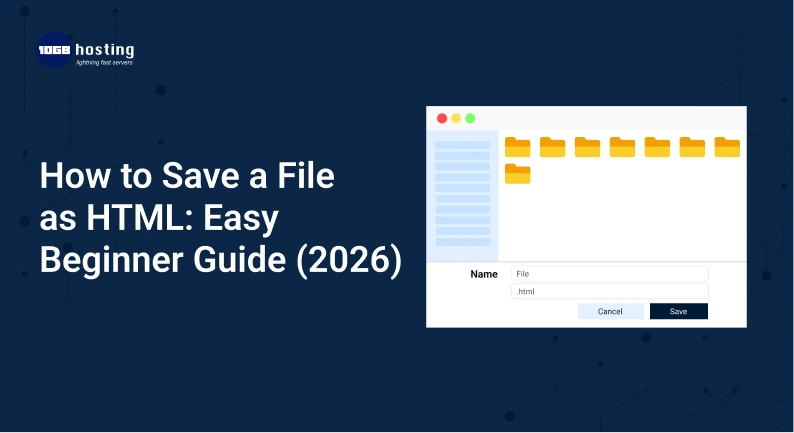
- Put in a name for the file that ends with .html
For example:
- home.html
- page.html
- index.html
- Select All Files as the kind of file.
- Press Save.
By saving the file with the .html extension, you make sure that the computer sees it as an HTML document.
You can open the file in a browser after saving it to see the webpage.
Step 2: Use a code editor to save a file in HTML
People like to use code editors to make webpages.
Steps
- Start your editor and make a new file.
- Put the content of your webpage here.
- Choose Save.
- Put the .html extension at the end of the file name.
- To check the file, open it in a browser.
A lot of beginners like this way better because code editors make it easier to edit.
Step 3: Save a file as HTML
You can also make an HTML file out of a regular document.
Steps
- Open your file.
- Click on “Save As.”
- Pick a place on your computer.
- Choose either HTML or Web Page format.
- Press Save.
This strategy works well if you already have content ready.
Step 4: Store a webpage as HTML
You might want to save a webpage that already exists offline.
Steps
- In your browser, go to the page.
- Choose “Save As.”
- Pick an option for HTML format.
Most of the time, browsers have options like:
- Only HTML
- Full webpage
You can save the webpage to your computer using these choices.
Example from the real world:
A student project website
Think about a student making a website for a school project.
They get ready information like:
- Title of the project
- Beginning
- Pictures
- Sources
The learner can do the following after saving the file as HTML:
- In a browser, open the project
- Send it in digitally
- Give it to teachers.
A lot of newbies make their first webpage this way.
Mistakes That Newbies Often Make
When beginners learn how to save a file as HTML, they typically run into the same challenges.
1. Saving the File in Text Format Instead of HTML
The file is often stored wrong as a text file.
This happens most of the time when you don’t change the file type when you save it.
Make sure the file always ends with .html.
2. Adding More Extensions
The file may sometimes have extra extensions that it shouldn’t have.
For instance:
- page.html.txt
This won’t work right as an HTML file.
3. Forgetting the File Extension
The browser might not recognise a file if you save it without the extension.
Before saving, always look at the name of the file.
4. Using File Names That Are Hard to Understand
Simple file names work best.
Some good examples are:
- index.html
- about.html
- contact.html
Don’t use names that are too long or hard to understand.
Advice for Newbies
These instructions will help you save html as a file correctly every time.
Keep Names Simple
It’s easier to keep track of and organise short names.
For example:
- index.html
- page.html
- home.html
Organise Your Files
Make a folder for all of your website files so that they are all in one location.
Editing is easier when files are organised.
Check Your File
Open the file in a browser once you save it to make sure it works.
Testing stops problems from happening later.
Save Often
While you work, make sure to save your file often so you don’t lose any progress.
Advantages of Saving Files as HTML
There are several benefits to knowing how to save a file in HTML.
Making a website is easy
HTML files are the core parts that make up websites.
They can be posted to hosting and made public online if they are stored correctly.
Skill for Beginners
One of the easiest technological skills to master is how to save HTML files.
Most individuals get the hang of it in a few minutes.
You don’t need any special tools
You only need:
- A PC
- An editor for text
- A web browser
That’s enough to make web pages.
The Basics of Web Development
To learn, start with HTML:
- Designing a website
- CSS
- JavaScript
The first step is to save files correctly.
Questions That Are Often Asked (FAQs)
1. How can I save a file in HTML format instead of TXT format?
When you save the file, choose “All Files” and put .html at the end of the name.
This makes sure that the file is saved as HTML.
2. Is it possible to turn a regular file into HTML?
Yes. You can open the file and save it again with the .html file extension.
This turns the document into an HTML file.
3. How do I get into an HTML file?
You can open an HTML file by double-clicking it or using any web browser.
When you open an HTML file in a browser, it instantly shows it as a webpage.
4. What is the difference between .htm and .html?
Both extensions do the same thing. The difference is mostly due to history, and either one can be used.
5. How can I save HTML files the easiest way?
Using a basic text editor and saving the file with the .html extension is the easiest way.
Final thoughts
One of the easiest but most crucial things for beginners to learn is how to save a file as HTML. You may start making webpages and learning web development with confidence after you know how to save HTML as a file correctly.
Now that you’ve read this tutorial, you know:
- How to save a file in HTML format
- How to save a file as HTML
- Things you should not do
- Best ways to do things for beginners
This is the first step toward making real webpages.
Call to Action
You know how to save a file as HTML now. Try making your own webpage today! To get better at web programming, start practicing and look for more beginner-friendly materials.