
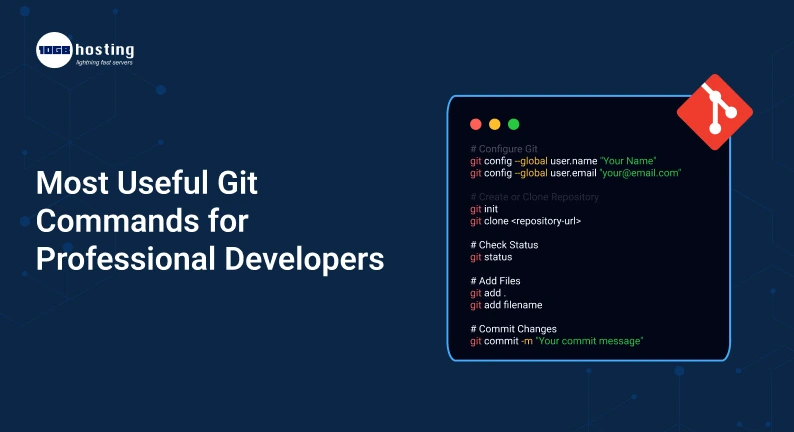
Git Commands That Will Save You Hours Of Development Time
Every professional developer has had the “oh shit” moment. You accidentally overwrite a file, merge the wrong branch, or decide you need to switch tasks in the middle of something. Without a good version control system, these situations can become major setbacks very quickly.
That is why Git has become an essential tool for software developers everywhere. Whether you are building a small website, managing enterprise applications or working with a distributed development team, Git helps you keep your code organised, secure and easy to manage.
The issue is that most developers only know a few basic Git commands, missing out on powerful features that can dramatically improve their workflow. Knowing the right Git commands can help you work faster, make fewer mistakes, and work better with your team.
In this guide, you’ll learn the most important Git commands that professional developers use every day, when to use them, and how they can make your development process smoother and more productive.
Git is a free and open source distributed version control system designed to handle everything from small to very large projects with speed and efficiency.
Table of Contents
What is Git ?
Git is a distributed version control system that tracks changes in source code during software development. It allows developers to save changes, compare versions, collaborate with other team members and go back to previous versions if needed.
Git is like a time machine for your code. If you need, you can follow, review and restore all changes you make. Git maintains a full history of changes, allowing developers to experiment and improve their code with no fear of losing work or breaking an application.
Today Git is used in millions of software projects and is the core of platforms like GitHub, GitLab and Bitbucket.
Why Git Is the Choice of Professional Developers
Modern software development is rarely a solo endeavour. Features are often worked on by different developers at the same time in applications.
Git assists teams with:
- Full Change Tracking
- Smooth collaboration for developers
- Code history safe backup
- Error tracking efficiency
- Branching for safe experimentation
- Faster deployment processes
- Improved organization of projects
It is far more difficult and error-prone to work on large projects without Git.
Understanding basic Git workflow
Before we get into commands, we have to understand how Git works.
Here’s a typical Git workflow:
- Create/Change Files
- Stage Changes
- Make the changes.
- Push changes to a remote repo
- Work with team members
- Pull others updates
Once you get this workflow, git becomes a lot easier to use.
Most Useful Git Commands a Professional Developer Should Know
1. git init
git init This initialises a new Git repository.
Example
git init
This is usually the first command you’ll run when you start a new project.
Why It’s Important
Git can’t track changes in your project without initialisation.
2. git clone
Rather than creating a repository from scratch, developers often find themselves having to copy an existing repository.
Example
git clone https://github.com/example/project.git
Real-World Scenario
Imagine you are joining a development team. The first thing you will do is to clone the project repo into your local machine.
Advantages
- Download project files
- Keeps the full commit history
- Connects to the remote repo automatically
3. git status
One of the most used git commands.
Sample
git status
This command outputs:
- Files changed
- Untracked files:
- Stage changes
- Branch info now
Why developers use it all the time
Professional developers will run git status before they commit any code, they do not want to make mistakes.
4. git add
Git has a staging area where you can stage your changes before you commit them.
git add.
Add a particular file git add index.html
Add All Files
Good practice
Rather than staging everything, review your changes carefully and stage only the files that are relevant to your current task.
5. Git Commit
A commit is a permanent snapshot of your staged changes.
Example git commit -m “Add feature for user authentication
Pro Tip:
A good commit message explains why and what was changed.
Bad example:
git commit -m “Fixed stuff”
Example:
git commit -m “Fix bug with password validation on login”
Having clear commit messages will make it much easier to troubleshoot in the future.
6. git log
This command shows the commit history of the project.
Example:
git log
Short Version
git log -n 1
Why This Works
git log is used by developers to:
- check earlier work
- Discover bugs
- Track development features.
- Understand the project history.
7. git branch:
Branches allow developers to work on new features without affecting the code base.
List Current Branches
Make a New Branch git branch feature-dashboard
The importance of branching
Professional teams rarely grow directly on the main branch. In its place, each feature gets its own branch.
8. git checkout
Used to switch from one branch to another.
git checkout feature-dashboard
Create and switch in one command
git checkout -b feature-dashboard
Real World Example
For example, a developer of a payment module can switch to a bug-fix branch to not interfere with the ongoing work.
9. git switch
Newer versions of Git added a git switch to make it easier for users.
Example git checkout develop
- Advantages
- Simpler syntax
- Beginners can simply
- More custom functionality
10. git merge
Once a feature is done, it needs to be merged with another branch.
Example
git merge feature-dashboard
Typical Workflow
- Create a feature branch
- Create feature
- Changes in tests
- Merge to main branch
Keeps things organised and stable.
11. git pull
Developers need the latest updates from their teammates.
Example
git pull origin main
Why the Issue Matters
If you don’t pull down recent changes before you start working, you might have some conflicts later.
Many professional developers start the day with a git pull.
12. git push
Changes are made locally and then uploaded to the remote repository.
Example
git push origin master
Real World Use
Your teammates don’t see a finished feature until you push it.
13. git pull
Git fetch downloads updates, but doesn’t automatically merge them.
Example
Git Pull Vs Fetch Difference
git pull Fetch from and merge with another repository.
git fetch –only-download.
Fetch is a favourite of professionals because it allows them to control when updates are merged.
14. git stash command
One of the most underrated
Git commands
git stash
Cancel Changes
git stash apply
Real Life Scenario
Imagine you’re in the middle of building a feature, and then a hot issue appears.
Or you can stash your work instead of making a temporary commit:
git stash.
Switch branches, fix the bug, and back to your work:
git stash apply
This command saves developers countless hours of their lives.
15. git diff
This command displays exactly what is changed.
Example
git diff
Advantages
Developers use git diff to:
- Edits to review
- Find mistakes
- Check code changes before commit
It’s like a final check before you save your work.
16. git reset
git reset changes things in the index or resets commits.
Example
git reset file name
Why Use It?
git reset quickly fixes the problem if you accidentally stage the wrong file.
17. revert git
Unlike reset, revert safely undoes a commit while respecting project history.
Example
git revert commit-id
Why Professionals Use It
Revert creates a new commit to undo previous changes, it does not delete history.
That makes the cooperation safer.
18. rebase
Git rebase leads to a cleaner commit history.
Example
git rebase main
Benefits:
- Project cleaner schedule
- Less painful code reviews
- Greater organization
Many development teams rebase before merging feature branches.
19. git remote
This command works with remote repos.
Remote Connections View
git remote -v
Add Remote Repository
git remote add origin repository-url
Important
Collaboration on platforms like GitHub is not possible without remotes.
20. cherry-pick
Git cherry-pick takes a specific commit from another branch.
Example
git cherry-pick
Real World Use Case
Say you have a bug fix on one branch, but you don’t want all the changes on the branch.
Cherry-pick lets you copy only the commit you require.
Example of a Professional Git Workflow
Number of programmers with experience working daily.
Step 1: Update Local Repository
git pull origin main
Step 2: Create a new branch
git checkout -b user-profile-update
Step 3: Build And Test
Code and verify.
Step 4: Check changes git status
And git diff
Step 5: add files
git add
Step 6. Submit Changes
git commit -m “Implement user profile editing”
Step 7: Push Changes
git push origin user-profile-upda
Step 8: Open a pull request
Please review the code before merging.
This workflow reduces errors and enhances collaboration among the team.
Common Git Mistakes Developers Should Avoid
Not Using Meaningful Commit Messages
Bad commit messages make it difficult to understand a project’s history.
Working Directly on Master Branch
Git Status Ignore
Regularly checking status avoids accidental commits.
Forgetting to Pull Changes
This often creates unnecessary merge conflicts.
Push for Excessive Use of Force
Force push should be used with caution . It can overwrite work done by your teammates.
Benefits of Learning Git Commands
There are several ways in which developers benefit from knowing Git deeply.
More Productivity
Fewer mistakes. Faster completion of tasks.
Improved Collaboration
Teams are more efficient in working together.
Simpler debugging
History of commits helps to find the problem fast.
Better Career Opportunities
Git knowledge is required in most software development jobs.
Increased Confidence
Developers can experiment all they want without fear of losing their work.
Questions & Answers
What are the most used Git commands?
The most used Git commands are: git init, git clone, git add, git commit, git push, git pull, git status and git branch.
What does git stash do?
What does git stash do ? It temporarily saves your unfinished changes so developers can switch tasks without committing the changes.
Do I have to use Git Bash?
No. Git can be used via command-line clients, IDE’s and graphical applications. But Windows users love Git Bash, because it gives them a Unix-like environment.
What’s the difference between git merge and git rebase?
Git merge merges the branch histories and keeps all commits . Git rebase rewrites the commit history, creating a more linear project history.
Why do professional developers use branches?
Branches allow developers to work on features, bug fixes, and experiments in isolation from the main codebase.
Last Thoughts
Git is much more than just a tool to save your code changes. It is the backbone of modern software development and one of the most valuable skills a developer can learn. Knowing commands like git commit, git pull, git push, git branch, git stash, git rebase can drastically change the way you build, manage and collaborate on software projects.
Whether you’re new to version control or an experienced engineer looking to optimize your workflow, taking the time to invest in Git will pay dividends for the rest of your career. As you get better at these commands, you’ll become more efficient and will be able to take on complex development tasks more confidently.
Ready to improve your development skills?
Start using these Git commands in your everyday projects today. Subscribe to our blog to get expert programming tutorials, development guides and productivity tips. Stay up to date on the latest trends in software development.